Contact Management Across Every Messaging Channel: One Profile Per Customer
SendSeven Team, Editorial Team
The same customer exists three times over: in your phone, your inbox, and your Instagram DMs. We explain how a system recognizes it is the same person, the three ways to handle duplicate contacts, what happens when the data disagrees, and how to import an old list cleanly.
TL;DR
Contact management across messaging channels means every customer gets exactly one profile, no matter the channel. The platform recognizes when two incoming records belong to the same person, by phone number, email, or channel ID, and merges them into a single contact. History stays intact, and duplicates never pile up.
The real question is what happens when the merged data disagrees. With SendSeven, the older record becomes the lead contact, filled-in fields beat empty ones, and every conflict gets logged as a note on that contact. Blocked and archived contacts stay blocked and archived. See how this fits into SendSeven’s plans.
Why the same customer ends up in your systems more than once
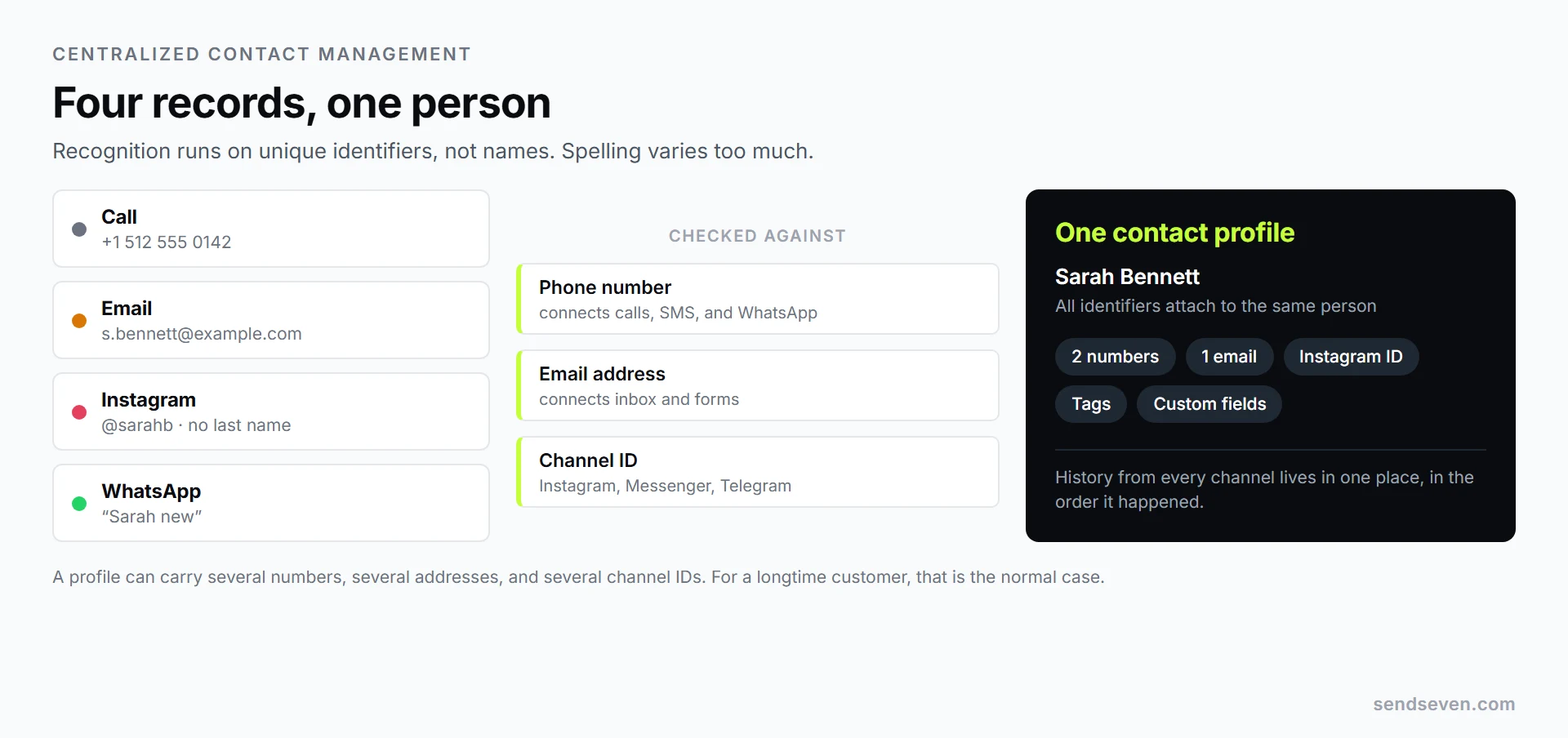
Sarah Bennett calls your dental practice in Austin, and her number lands in the front-desk phone. Two weeks later she emails to reschedule, then messages on Instagram about a payment plan, showing up there only as a username. In the estimates folder she is “Bennett, S.”; on a colleague’s phone, “Sarah new.”
That is one person spread across four systems. Nobody made a mistake, it is simply what happens when every channel brings its own identifier. The cost shows up in three places:
- Duplicate work. Two team members handle the same request because each only sees their own channel.
- Missing context. Whoever cannot see the history asks questions the customer already answered three weeks ago.
- Wrong messages. A blocked or opted-out contact still receives a campaign because the opt-out lives on a different record.
Centralized contact management does not fix this by keeping better notes, it fixes it with a rule: one profile per person, and everything that comes in gets checked against it. The definition sits in the glossary under contact management.
How a system recognizes it is the same person
Recognition runs on unique identifiers, not names. “S. Bennett,” “Sarah Bennett,” and “Bennett Dental LLC” can all describe the same account, so three signals get checked instead:
- Phone number. Connects calls, SMS, and WhatsApp.
- Email address. Connects inbox, forms, and newsletters.
- Channel ID. The identifier Instagram, Facebook Messenger, or Telegram assigns to that person.
A single contact can carry several of these identifiers at once, and that is the normal case, not the exception. A profile with a mobile number, a landline, two emails, and an Instagram ID is what you would expect from a longtime customer.
One edge case is easy to mistake for a duplicate: if someone messages you on WhatsApp for the first time and that number already belongs to an existing contact, no second record gets created. The WhatsApp identifier just attaches to the existing profile as another contact method. The glossary covers the full process under contact matching.
Three ways to handle duplicate contacts
Not every team wants the same behavior. A business creating hundreds of contacts a day through an API has different needs than one getting twenty inquiries a week. That is why there are three modes, and the choice applies account-wide.
| Mode | What happens on a collision | Best for |
|---|---|---|
| Auto-merge Default |
The new record updates the existing contact instead of creating a second one. | Teams that want a clean record without handling duplicates by hand. |
| Allow duplicates | The contact gets created, but possible matches are flagged and shown alongside it. | Teams that want to decide for themselves, or where several people share one address. |
| Block duplicates | Creation is rejected and the existing matches are named. | Integrations with another system that owns the data, where nothing should appear unnoticed. |
For most small businesses, the first mode is right, which is why it is the default. If you are unsure, start there and check the list of possible duplicates after a couple of weeks. Matches are grouped by phone number, email, channel ID, or name, so you can merge several groups at once.
What happens when two records disagree
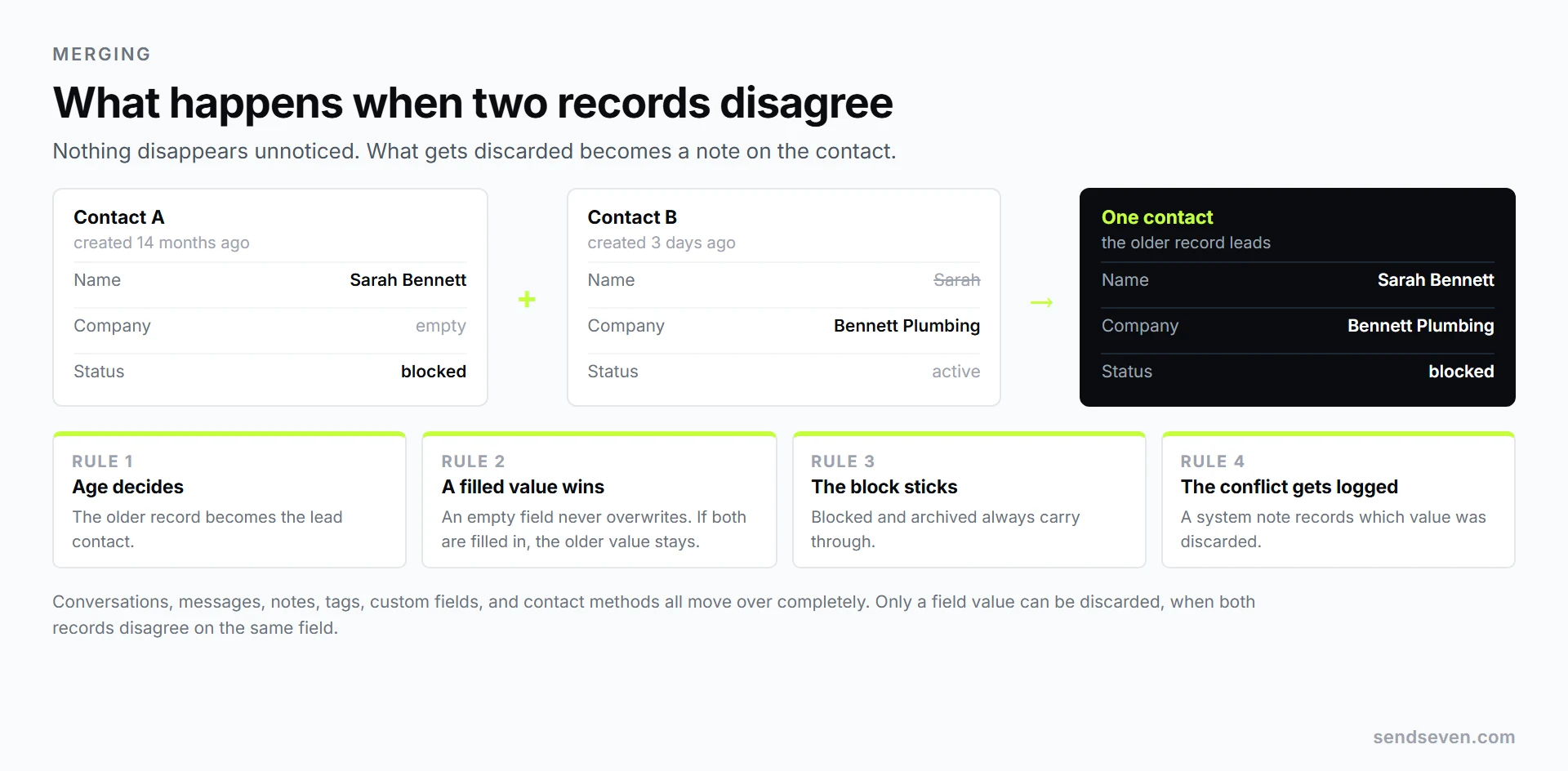
This is the question that makes most people hesitate. If one record says “Sarah” and the other says “Sally,” which one wins? Four rules answer that:
- The older record becomes the lead contact. It usually has the longer history and the most connections.
- Filled-in fields beat empty ones. If the new record has a company address and the old one does not, it gets carried over. If both are filled in, the older value stays.
- Blocked and archived status sticks. If either contact was blocked or archived, the merged contact is too. A merge can never quietly lift a block.
- The conflict gets logged. A system note appears on the lead contact recording which record it merged from and which value was discarded.
Everything attached to the second contact moves along with it: conversations, messages, notes, tags, custom fields, and contact methods. No history gets lost, it just ends up attached to a different record.
One exception is deliberately strict: if a team member adds a phone number or email that already belongs to another contact, nothing merges automatically. A prompt appears instead, with two options: open the other contact, or merge on purpose. Either way, a merge only ever happens after explicit confirmation.
Importing an old list without creating chaos
The most common starting point is a CSV file exported from a spreadsheet or an old CRM, something like “Contacts_Export_2024.csv” with columns for name, phone, and email. Three things are worth doing first:
- Clean up the header row. The first row should hold the column names. One field per column, no merged cells.
- Standardize phone numbers. International format with a country code is the safest option, since matching depends on it. Every row needs at least one phone number or email address.
- Confirm consent. Only import contacts who opted in to hear from you on that specific channel. Under TCPA and CAN-SPAM, a purchased list is not a gray area, it is excluded outright. A single record per person matters here for practical reasons too: one place to show consent, one auditable history, one spot to delete on request. For EU customers, GDPR follows the same logic, consent tracked per channel and provable later.
During the import itself, you can set the duplicate-handling mode for that one run, independent of the account setting. Afterward, the summary shows how many contacts were merged and how many were blocked. The full walkthrough is in importing and organizing contacts.
What this means for your CRM and integrations
The most common objection to auto-merge is technical: if two contacts become one, an identifier disappears. What happens to the CRM that had that identifier stored?
It stays resolvable. Looking up the old identifier through the API returns the merged contact, plus a note of which contact it merged into. Identifiers stored in a CRM, a webhook receiver, or an automation step keep working instead of pointing at nothing.
That holds across all three integration paths available in the integrations section: Zapier and n8n with no code, webhooks for real-time events, and the REST API for a full build-out.
One thing worth framing correctly: centralized contact management for messaging does not replace a CRM built for quotes, invoices, and sales stages. It gives that CRM the piece it usually lacks, a full conversation history across every channel. The strategic case for that is covered in the 360-degree customer profile article; how the shared inbox behind it works is explained in what is a business messenger.
Frequently asked questions (FAQ)
What is contact management across messaging channels?
It is the systematic upkeep of customer data in one place, with a single profile per person. Incoming messages from every channel get attached to that profile instead of landing in separate address books.
How does the system know two contacts are the same person?
By phone number, email address, and channel ID. Names are not used for this, because spelling and formatting vary too much.
Can anything get lost when contacts are merged?
Conversations, notes, tags, and custom fields all move over intact. Only a single field value can be discarded, when both records disagree on the same field, and that gets recorded as a note on the contact.
What happens to a blocked contact?
It stays blocked. Blocks and archived status always carry through a merge, so nobody who opted out accidentally starts receiving messages again.
Will my CRM break if contacts get merged?
No. The old identifier stays queryable and points to the merged contact. Integrations that stored the old identifier keep working.
Do I need to prep anything in a spreadsheet first?
Not for day-to-day operation, matching happens automatically as messages come in. Before a bulk import, an hour of cleanup pays off, mainly on phone numbers and column headers.
Conclusion
Centralized contact management is not a cleanup project, it is a rule that runs in the background. When it works, nobody notices. What gets noticed is only ever its absence: two replies to the same question, or a campaign sent to someone who unsubscribed months ago.
Two decisions are enough to get started. First, which duplicate mode your account should use, and for most businesses that is auto-merge. Second, whether to import your old list cleanly or let contacts build up naturally. Everything else, from custom fields to tags to your CRM connection, sorts itself out along the way.
To see what a profile like this looks like in practice: contact management is part of the unified inbox in SendSeven, and it runs across every channel you connect.