Connect SendSeven to Claude: Connector Setup Guide
SendSeven Team, Editorial Team
· Last reviewed · 8 min read
How to connect Claude to your SendSeven inbox: find the connector, sign in, choose capabilities. Plus which Claude plan works, how teams enable the connector and how developers set up SendSeven in Claude Code, Cursor and VS Code.
Short answer
SendSeven is listed in Claude's connector directory as a community connector. In Claude, open Customize > Connectors, click "+", pick SendSeven, click Connect and sign in. It works on every Claude plan, including Free. Claude then works with your inbox on six channels.
Prompt for Claude
Help me connect SendSeven from the connector directory.
Then show me this week's most common customer questions and suggest a short standard reply for each. Don't send anything without my OK.
Without a prompt: open Customize > Connectors, click "+", pick SendSeven and click Connect. Or open the SendSeven listing in Claude's directory directly.
Is a Claude connector the same as MCP?
Almost. A connector is Claude's link to another service, and under the hood it runs on the Model Context Protocol (MCP). The SendSeven connector links Claude to the SendSeven MCP server at mcp.sendseven.com. Anthropic's Claude help describes connectors as the way to give Claude access to tools and data.
SendSeven is listed in Claude's connector directory as a community connector. That means SendSeven built and runs the connector, and Anthropic lists it in the directory.
Our glossary explains what an MCP server is and how connectors work. For the bigger picture, including which providers exist for WhatsApp and other channels, read the WhatsApp MCP server guide.
How do I connect SendSeven to Claude?
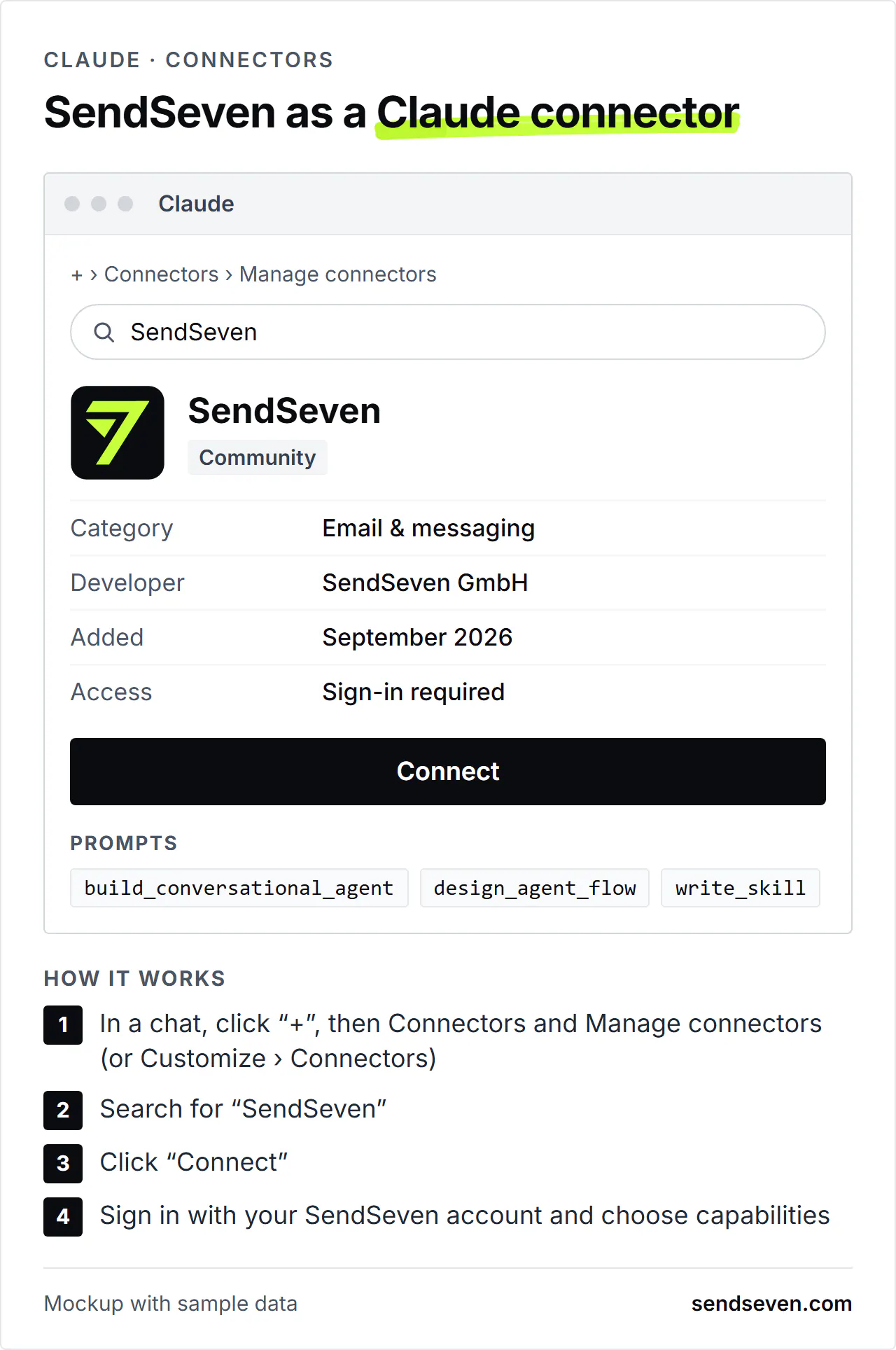
You connect SendSeven to Claude in six steps through Connectors, with no code and no API key. You sign in with your SendSeven account. It takes about two minutes. Once connected on claude.ai, the connector is also ready in the desktop app and on mobile.
- Open Connectors: In Claude, open Customize > Connectors and click "+". In a chat, you can also click "+" (or type "/") and choose Connectors > Manage connectors.
- Find SendSeven: Search for SendSeven in the directory. The listing shows sign-in is required, because you sign in with your SendSeven account.
- Connect and sign in: Click Connect and sign in with your SendSeven account. Choose the workspace Claude may access. You do not need an API key.
- Choose capabilities: Choose what Claude may do. The Select capabilities screen lists 12 groups. Conversations, Messaging, Email, Contacts, Agent Builder, Knowledge Base Authoring, Contact Data Model and Flows are selected by default. Campaigns, Knowledge Base, Webhooks (Developer) and Team Chat Bots are off.
- Enable campaigns if you need them: If Claude should create campaign drafts, turn on Campaigns. If the connector is already connected, disconnect and reconnect so the new capability applies. Campaigns stay drafts as long as the send permission is missing.
- Use it in the chat: Just tell Claude what you need, for example "Show me today's open conversations". Claude calls SendSeven on its own when the task needs it.
On Claude Team and Enterprise, there is one step first: an Owner or Primary Owner adds SendSeven for the whole team under Organization settings > Connectors > "Browse connectors" > "Add to your team". Then each person connects it and signs in with their own SendSeven account.
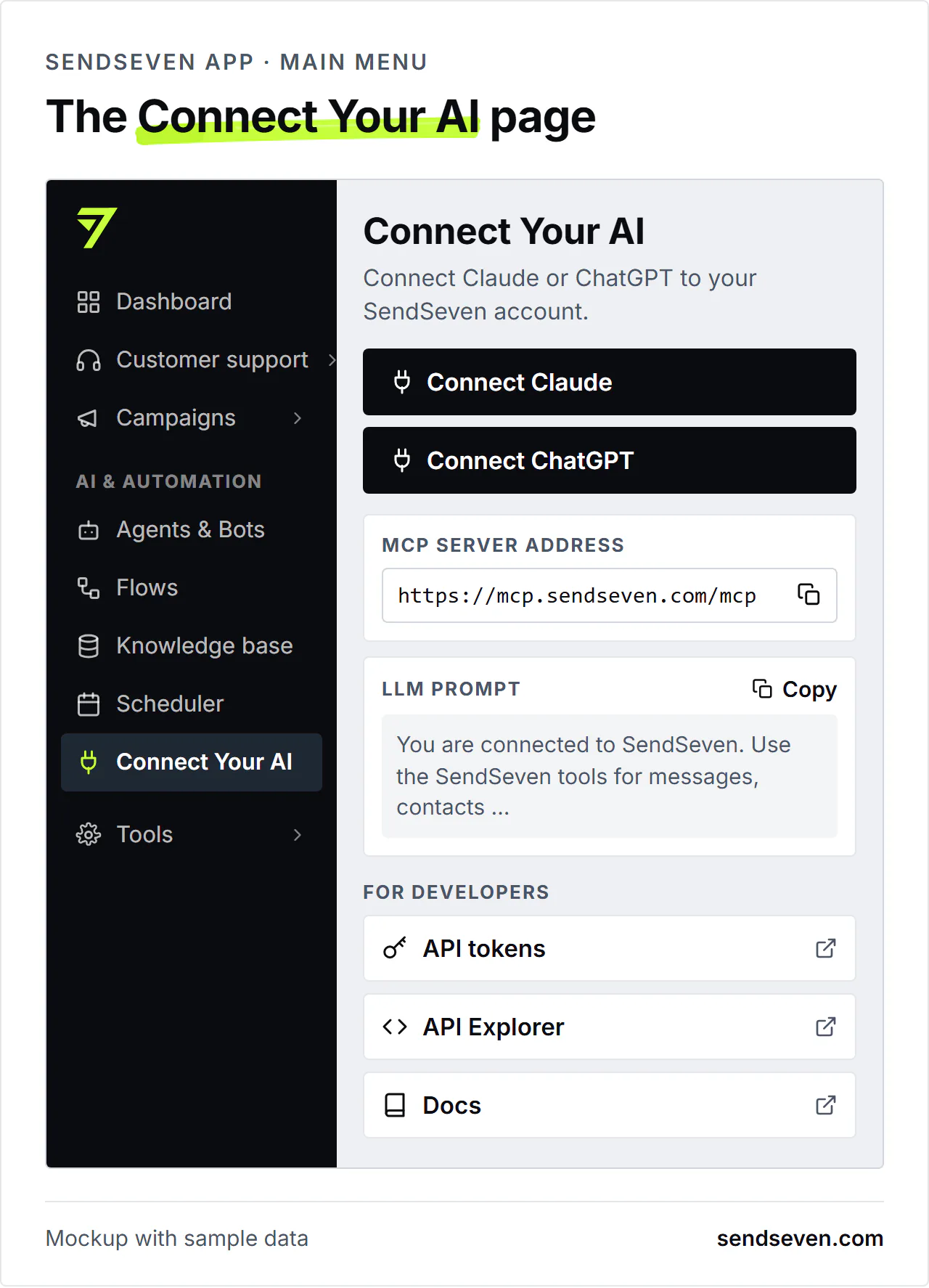
You will also find the route inside SendSeven: the Connect Your AI page has a button for Claude. If you prefer ChatGPT, follow the ChatGPT guide.
Which Claude plan do I need?
The SendSeven connector works on every Claude plan, including Free. On Team and Enterprise, an owner first adds it for the organization; then each person signs in. According to the Claude help center, directory connectors are available on Free, Pro, Max, Team and Enterprise.
On the SendSeven side, any package works; MCP access is included in all of them. What Claude can do through the connector depends on your SendSeven package and your role on the team. If Claude asks for something your package does not include, SendSeven returns plan_upgrade_required.
How do I set up SendSeven in Claude Code, Cursor or VS Code?
In Claude Code, Cursor and VS Code, you add the server address https://mcp.sendseven.com/mcp once and then sign in with your SendSeven account. No API key here either. The commands come from the SendSeven documentation for MCP clients.
Claude Code
Run this command in your terminal:
claude mcp add --transport http sendseven https://mcp.sendseven.com/mcpThen type /mcp in Claude Code, select sendseven and click Authenticate.
Cursor
Create .cursor/mcp.json in your project (or ~/.cursor/mcp.json for all projects):
{"mcpServers": {"sendseven": {"url": "https://mcp.sendseven.com/mcp"}}}Sign in under Cursor Settings > MCP with Login next to sendseven.
VS Code with GitHub Copilot
Create .vscode/mcp.json. Note: the top-level key here is servers, not mcpServers.
{"servers": {"sendseven": {"type": "http", "url": "https://mcp.sendseven.com/mcp"}}}Start the server from the file or with the "MCP: List Servers" command and follow the sign-in.
The server is open source; the code is on GitHub.
How secure is the connector?
Through the connector, Claude only gets the capabilities you allow at sign-in and never acts with more rights than your role in SendSeven. Sign-in uses OAuth, so no password or API key ends up in Claude. You can revoke access at any time, as the SendSeven documentation for Claude explains.
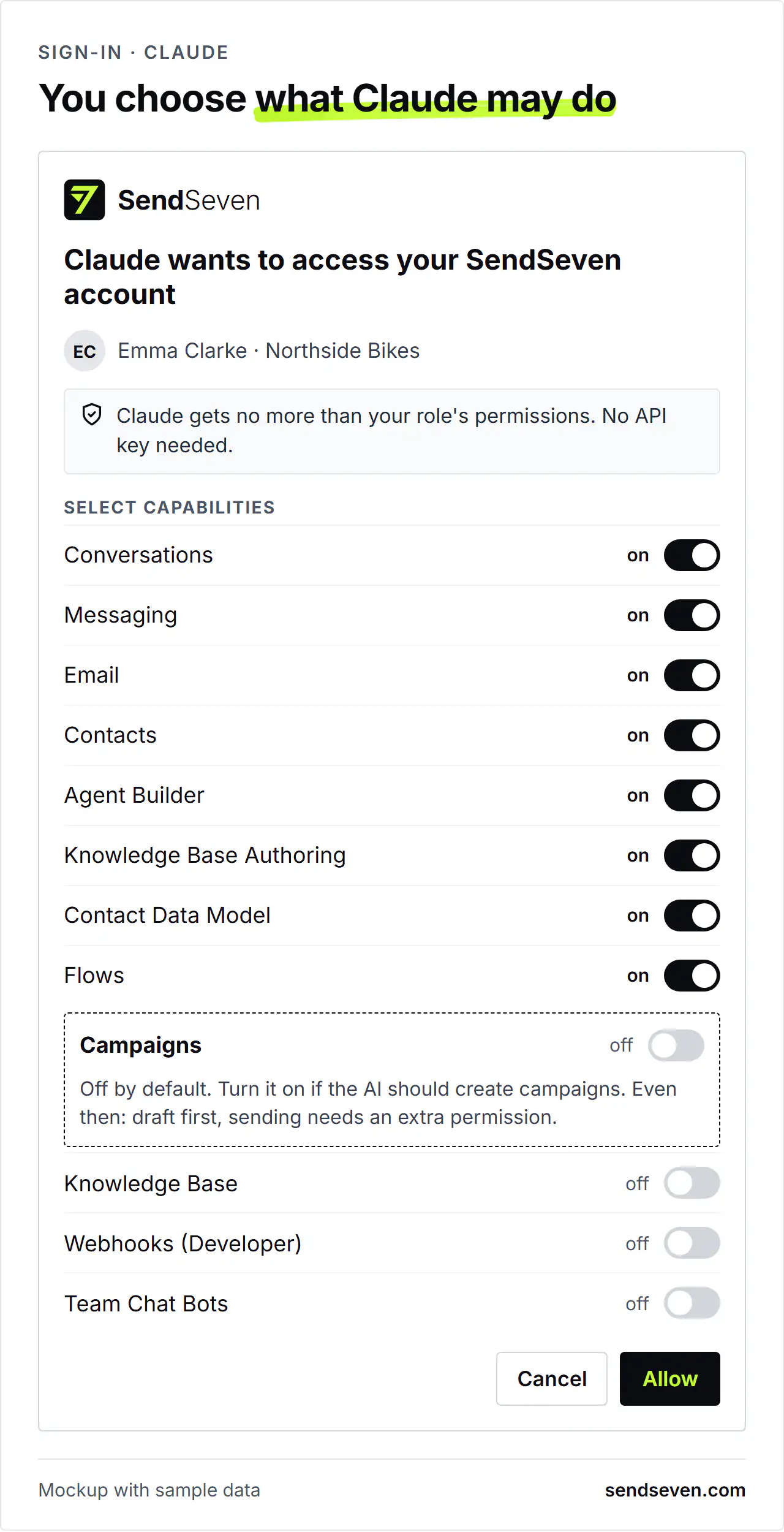
- Only the capabilities you allow: the Select capabilities screen lists 12 groups. Conversations, Messaging, Email, Contacts, Agent Builder, Knowledge Base Authoring, Contact Data Model and Flows are selected by default; Campaigns, Knowledge Base, Webhooks (Developer) and Team Chat Bots are off. The Flows group means automations, not WhatsApp Flows.
- Campaigns as drafts: even with Campaigns on, Claude only creates drafts. Sending also needs the send permission.
- Your role applies: if you cannot create campaigns on your team, you cannot do it through Claude either.
- Revocable at any time: disconnect the connector in Claude or revoke access in SendSeven under Settings, Connected Apps.
- Open code: the SendSeven MCP server is open source on GitHub.
What can Claude do with your SendSeven inbox?
Once connected, Claude reads your conversations on six channels (WhatsApp, SMS, email, Instagram, Messenger, Telegram), summarizes them, drafts replies, updates contacts and creates campaign drafts. Claude is especially strong at longer analysis: spotting patterns, comparing texts, writing weekly reports.
An example: Sam Patel runs a furniture store with twelve people. On Friday he asks Claude: "Which questions came up most this week on WhatsApp and email, and where did we take longer than a day?" Claude goes through the conversations, groups the topics and suggests three standard replies. Sam tweaks one and has Claude answer the open delivery questions, each one up for his approval.
Claude does not build WhatsApp Flows, the forms inside the WhatsApp chat. SendSeven Cowork, your in-app AI assistant, does that, as Build a WhatsApp Flow by chat shows. Claude can, however, build an AI agent for your customers: Build an AI agent from ChatGPT or Claude. For the full picture, read the Cowork and MCP guide.
Frequently asked questions
What does the SendSeven connector cost?
Nothing extra at SendSeven; MCP access is included in every package. Messages Claude sends through SendSeven are billed like any other message. Your Claude subscription is separate, with Anthropic. Packages are on the pricing page.
Where do I find the connector once it is connected?
In a chat, click "+" and open Connectors. There you see whether SendSeven is active and can switch it on or off for that chat. To manage or disconnect it, go to Customize > Connectors.
What does community connector mean?
Anthropic uses the label for connectors that another provider built and runs. The SendSeven connector comes from SendSeven. Sign-in always goes through your SendSeven account.
Can I use several connectors at once?
Yes. Claude can use several connectors in one chat, such as SendSeven alongside your calendar or file storage. Claude can then answer a WhatsApp appointment request with a free slot from your calendar, provided you connected both.
Can Claude send campaigns?
Only if you explicitly allow it. Campaigns is off at sign-in. Turn it on and Claude creates campaigns as drafts. Sending also needs the send permission. If you enable a capability later, reconnect the connector.
Does the connector work in the desktop app and on mobile?
Yes. Once you connect SendSeven on claude.ai, the connector is also ready in Claude Desktop and in the Claude mobile app. You do not need to set it up again there.
Last checked on 23 November 2026 against the Claude help on connectors, the SendSeven documentation for Claude and the documentation for MCP clients.
Connect Claude to your inbox
MCP access is included in every SendSeven package. 14-day free trial.