Build a WhatsApp Flow by Chat: Forms Made with Cowork
Kai Viertel, Co-Founder & CMO
· Last reviewed · 8 min read
A WhatsApp form for appointments, callbacks or orders in a minute: how SendSeven Cowork builds a WhatsApp Flow from one sentence. Plus the difference between a flow and a WhatsApp Flow, cost and packages.
Short answer
SendSeven Cowork, your in-app AI assistant, builds a WhatsApp Flow, a form right inside the WhatsApp chat, from a single sentence. You describe what the form should ask, check the plan and get a draft in the editor. A successful build costs about 24 to 31 AI credits, available from the Professional package. You publish it yourself, in the editor.
Prompt for Cowork
Build a WhatsApp form for appointment requests: name, service (inspection, repair, advice), preferred day, morning or afternoon.
Two screens, last button: "Send request". Show me the plan first.
Without a prompt: open Cowork with Ctrl+J (Mac: ⌘J), describe your form in your own words and click Run plan. You review and publish the draft under WhatsApp Flows.
What is the difference between a flow and a WhatsApp Flow?
In SendSeven, a flow is an automation: it reacts to an event and runs steps, such as sending a reply or tagging a contact. A WhatsApp Flow is a form that opens right inside the WhatsApp chat, with fields, dropdowns and buttons. Meta's developer documentation describes WhatsApp Flows as interactive screens in the chat.
The two work together: a flow can send a WhatsApp Flow. When someone writes "appointment", the flow sends the form, and the person fills it in without leaving WhatsApp.
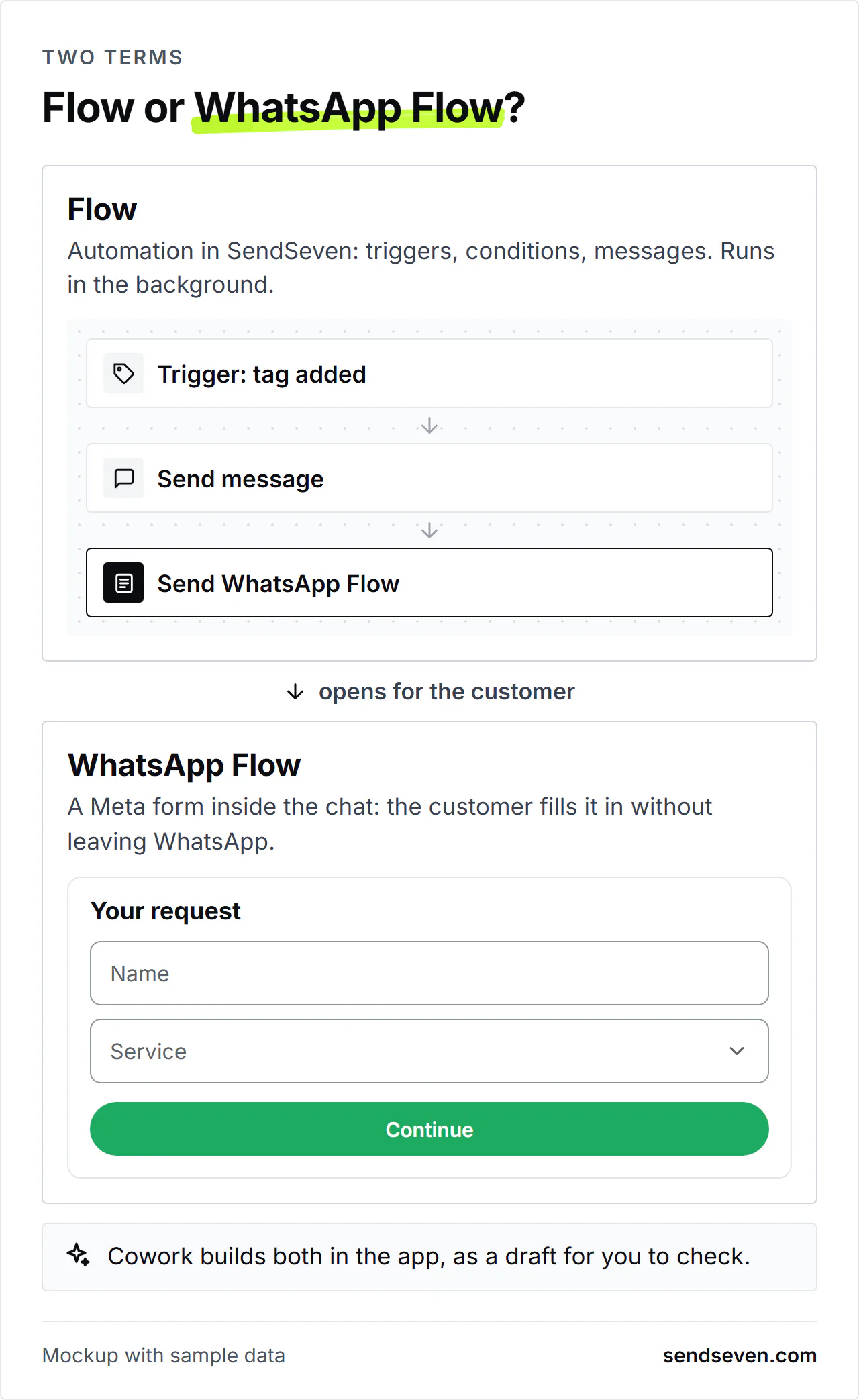
| Flow (automation) | WhatsApp Flow (form) | |
|---|---|---|
| What it is | A sequence of a trigger and steps | One or more screens with fields in the chat |
| Where it runs | On all SendSeven channels | Only in WhatsApp |
| Typical use | Reply, tag, assign, route | Appointment request, callback, order, survey |
| Built with | Flow Builder or Cowork | WhatsApp Flows editor or Cowork |
| Publishing | Cowork can, after your confirmation | You, in the editor |
| Package | From Professional | AI builder from Professional, dynamic forms from Scale |
How do I create a WhatsApp Flow by chatting with AI?
You open Cowork, describe in one sentence which details the form should ask for and check the plan. Cowork turns it into a WhatsApp Flow draft in the editor. You review it, save it and publish it there. You do not need Flow JSON or code. Here it is step by step:
- Open Cowork: Open SendSeven Cowork with Ctrl+J (Mac: ⌘J) or through the Cowork icon in the app.
- Describe the goal: Write one sentence about what the form is for and which details you need, for example: "Build a WhatsApp form for appointment requests: name, service, preferred day and time."
- Check the plan and run it: Cowork shows a plan with every step and the expected AI credits. Adjust it in your own words if needed, then click Run plan.
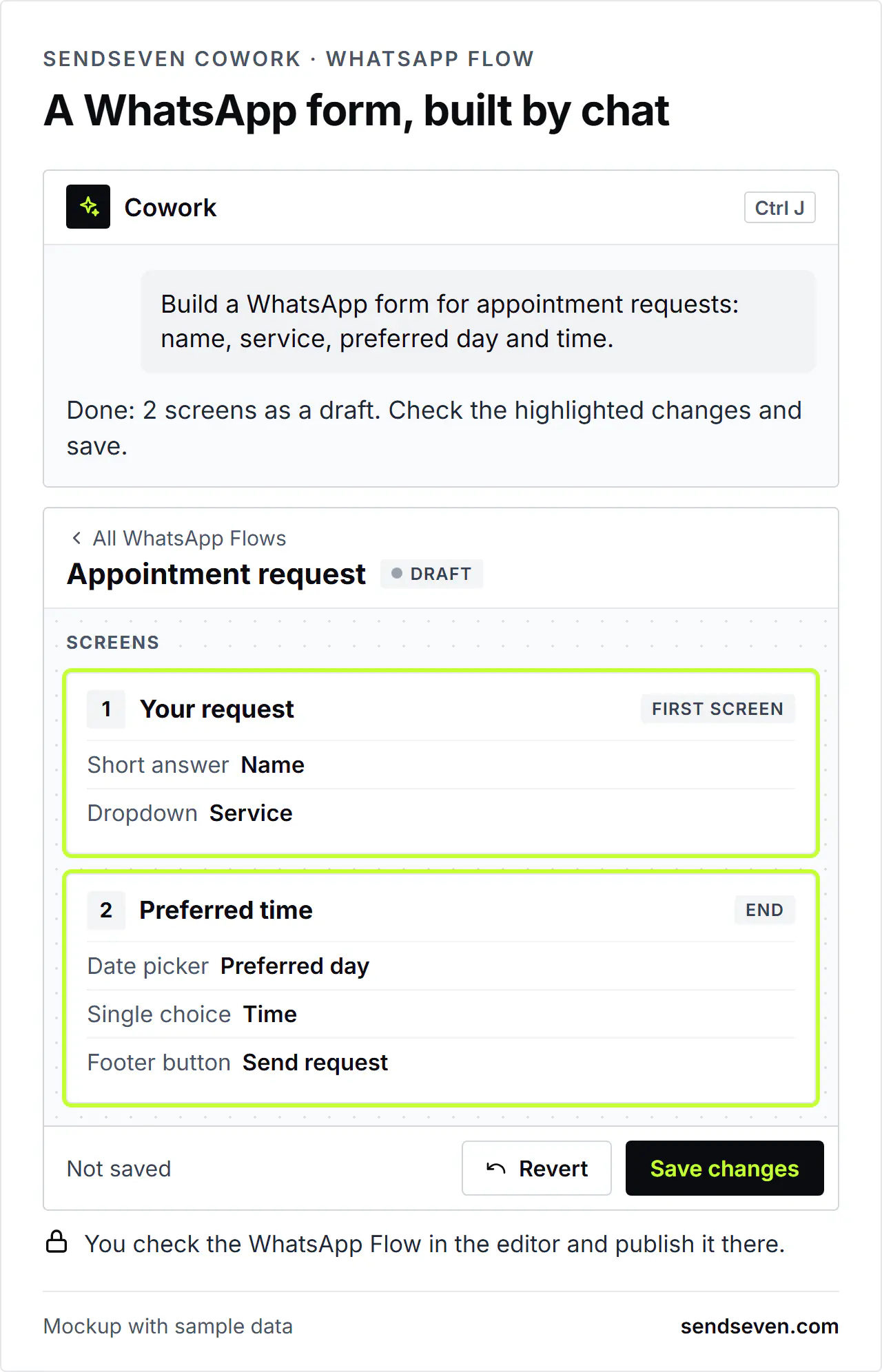
- Review the draft in the editor: Cowork creates the WhatsApp Flow as a draft and opens it in the editor. New screens and fields are highlighted. Keep the changes with Save changes or discard them with Revert.
- Refine: Edit texts directly in the editor or ask Cowork for a change, such as "Turn the time into a choice between morning and afternoon".
- Publish in the editor: You review the WhatsApp Flow in the editor and publish it there. Then you can send it in a message, a template or a flow.
A real-world example: Emma Clarke runs Northside Bikes. Appointment requests used to arrive as loose messages ("Hi, can I bring my bike in next week?"), and her team asked for name, service and time every single time. Now she sends a form with exactly those fields. Cowork built it in a minute.
How do I check the plan and adjust it in my own words?
Before Cowork builds anything, it shows a plan: every step, the expected AI credits and what needs to be in place. If something is off, just write what should change. Cowork updates the plan, and only Run plan starts the build. That is how SendSeven's product documentation for Cowork describes it.
- Add fields: "Also ask for the frame number, but as an optional field."
- Split it up: "Make it three screens, contact details last."
- Change the tone: "Keep it casual and friendly."
- Stop: if you don't like the plan, simply don't run it. Cancelled or failed runs cost no credits.
The more precise your first sentence, the closer the first draft gets. For how Cowork works in general and what else it builds, read about SendSeven Cowork.
How do I check, change and test the WhatsApp Flow?
Cowork creates the WhatsApp Flow as a draft in the editor and highlights everything new. You go through each screen, change texts directly or by asking Cowork, and keep the changes with Save changes. Nothing is published yet: you do that only once the form looks the way your customers should see it.
- Order: do the most important questions come first? Contact details usually belong at the end.
- Required fields: only ask what you really need. Every extra field costs responses.
- Choices over free text: "morning or afternoon" is easier to handle than a typed-in time.
- Last button: it should say what happens, such as "Send request".
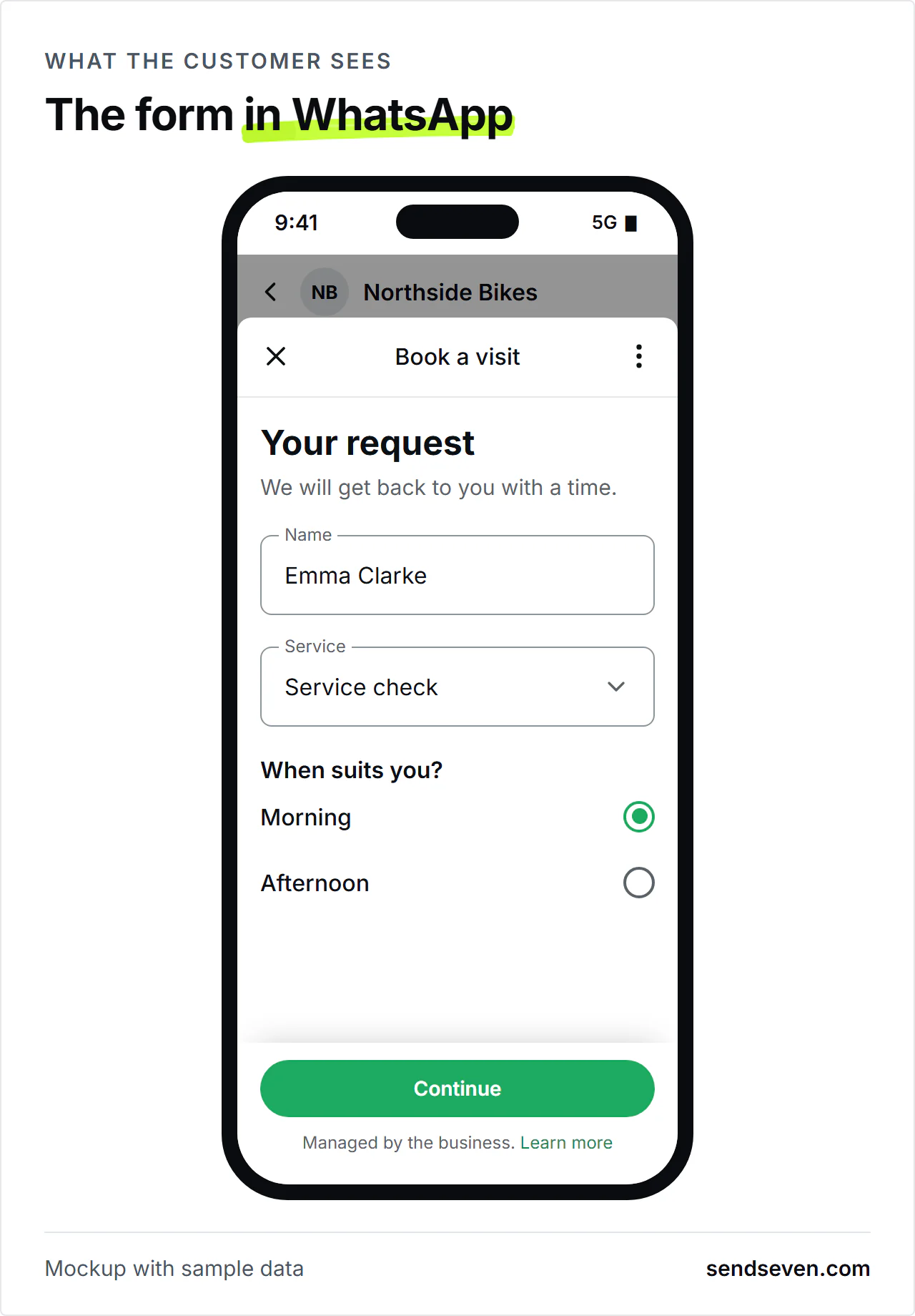
You review the WhatsApp Flow in the editor and publish it there. Then send it to your own number first and fill it in once yourself before it goes to customers.
How do I send the WhatsApp Flow automatically?
To send the form on its own, build a flow that sends it. Cowork can do that too: "When someone writes 'appointment' on WhatsApp, send the appointment request form." Cowork builds the automation, and it only goes live when you click Run. The Flow Builder page covers the details.
Outside the 24-hour window, meaning when the person has not written to you for a while, you send the WhatsApp Flow through a template with a flow button. Cowork can create that template as a draft too. You submit it to Meta for review with a separate click.
When is a WhatsApp Flow worth it?
A WhatsApp Flow pays off wherever you ask for several details one after another in the chat today. Instead of five messages back and forth, the person fills in one form without leaving WhatsApp. The details arrive complete and in the same format, which saves your team follow-up questions.
- Appointment requests: workshop, practice, salon, consulting.
- Callback requests: topic, phone number, best time.
- Orders and reservations: quantity, variant, pickup day.
- Short surveys: satisfaction after a purchase, two or three questions.
- Sign-ups: for classes, events or a WhatsApp newsletter.
If you want a real conversation that answers questions freely instead of a fixed form, an AI agent is the better tool. You can build one from ChatGPT or Claude: Build an AI agent over MCP. For every route at a glance, read the Cowork and MCP guide.
Frequently asked questions
Does a WhatsApp Flow go live without my confirmation?
No. Cowork creates the WhatsApp Flow as a draft, and you keep the changes with Save changes. Publishing is a separate step: you review the WhatsApp Flow in the editor and publish it there.
What does the AI builder for WhatsApp Flows cost?
A successful build or refinement costs about 24 to 31 AI credits (1 credit = €0.01), so roughly €0.24 to €0.31. Failed or cancelled runs are free. Cowork shows the exact range in the plan before anything runs. More on AI credits.
Which package do I need?
The AI builder for WhatsApp Flows comes with the Professional package (€79 a month) and is included in the 14-day trial. Dynamic WhatsApp Flows that load data live come with Scale. On API Only, you create static WhatsApp Flows through the API. All packages are on the pricing page.
Do I need Flow JSON or code?
No. Every WhatsApp Flow is a JSON description following Meta's spec, but Cowork writes it for you. You work in the chat and in the editor with screens and fields.
Do WhatsApp templates need Meta approval?
Yes, Meta reviews every template, and it usually takes minutes, up to 24 hours with a manual review. Cowork creates templates as drafts; submitting them to Meta is a separate click. Within the 24-hour window, you can send the WhatsApp Flow without a template.
Can ChatGPT or Claude build WhatsApp Flows?
No. Through the SendSeven MCP server, ChatGPT and Claude build AI agents and automations, but not WhatsApp Flows. Cowork builds those right in the app. For connecting ChatGPT or Claude for everything else, see the guides Connect SendSeven to ChatGPT and Connect SendSeven to Claude.
Last checked on 23 November 2026 against SendSeven's product documentation for Cowork and WhatsApp Flows and Meta's WhatsApp Flows documentation.
Your first WhatsApp form, built by chat
AI builder for WhatsApp Flows from Professional, included in the 14-day trial.