SendSeven Cowork: What the In-App AI Assistant Builds for You
Kai Viertel, Co-Founder & CMO
· Last reviewed · 8 min read
SendSeven Cowork builds flows, WhatsApp Flows, templates, emails and campaign drafts right inside SendSeven. How to open it, how the plan and confirmation work, what it costs per package and where its limits are.
Short answer
SendSeven Cowork, your in-app AI assistant and AI coworker, gets work done inside SendSeven: flows, WhatsApp Flows, templates, emails, campaign drafts, contacts, tags and lists. You open Cowork with Ctrl+J, describe the task and first get a plan with the cost. Nothing runs until you click. Cowork is included in every package and uses AI credits.
Prompt for Cowork (Ctrl+J in SendSeven)
Create a WhatsApp template "Order ready for pickup" with name and pickup number as variables.
Then build a flow that sends it as soon as a contact gets the tag "ready-for-pickup".
Show me the plan with the cost first.
Without a prompt: open Cowork in SendSeven with Ctrl+J (Mac: ⌘J) or the Cowork icon, describe your task in your own words and check the plan before you click "Run plan".
What is SendSeven Cowork?
SendSeven Cowork is an AI assistant inside the SendSeven app that does work in your account instead of only explaining it. You describe a task in your own words, Cowork plans the steps, shows the cost in AI credits and, once you approve, builds flows, templates, emails or campaign drafts.
Cowork is included in every package (pricing).
Think of a colleague who knows SendSeven inside out. You tell her: "We need a reminder by Monday for everyone who hasn't picked up their bike yet." She doesn't ask for menu paths; she puts a plan in front of you. That is how Cowork works.
One distinction matters: Cowork works for your team, not with your customers. If you want customer questions answered automatically, you need an AI agent. Every new Cowork chat starts with a notice that the feature is experimental, so check results the way you would check a new team member's work.
How do I open and use Cowork?
You open Cowork in SendSeven with Ctrl+J, or ⌘J on a Mac, and type your task into the chat panel. Cowork replies with a plan card: each step with its cost, the total and a list of requirements. Nothing happens until you click "Run plan".
- Open: press Ctrl+J (Mac: ⌘J). Cowork opens next to the page you are working on.
- Describe: write what you want, as specifically as you can: channel, audience, trigger, tone.
- Check the plan: read the steps, the estimated cost ("typically X to Y credits") and the requirements.
- Adjust: if something is off, just say so, for example "no discount code" or "only customers in Leeds". You can change the plan in plain words before it runs.
- Run: click "Run plan". Cowork builds the drafts and shows you what changed.
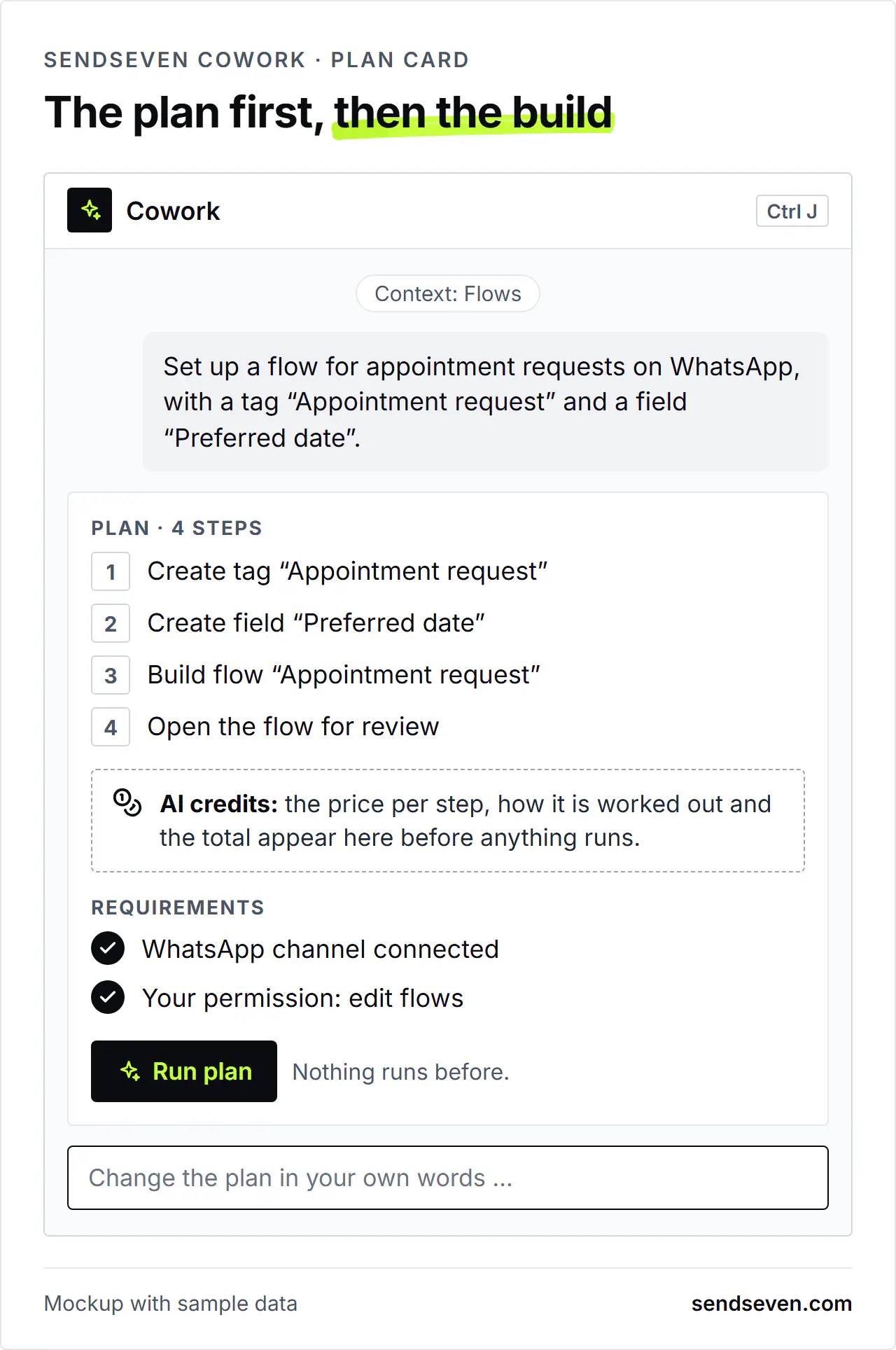
Cowork has three levels: Auto, Fast and Advanced. The default is Auto, where Cowork picks for you. Fast is enough for questions and simple tasks; Advanced pays off for bigger builds such as a multi-step flow.
What can Cowork build for me?
Cowork builds flows, WhatsApp Flows, WhatsApp templates, emails, campaign drafts, tags, fields, lists, contacts and canned responses in SendSeven. It can also build an email from a screenshot, for example of a newsletter you like. It handles contacts in bulk too, up to 1,000 at a time, with a preview.
| Task | What Cowork does | What you do next |
|---|---|---|
| Flow (automation) | Builds the flow in the Flow Builder, from the Professional package | Check and publish, also through Cowork with confirmation |
| WhatsApp Flow (form in the chat) | Builds the WhatsApp Flow as a draft in the editor, from Professional | You check the WhatsApp Flow in the editor and publish it there |
| WhatsApp template | Creates the template as a draft (no authentication templates) | Submit it to Meta with a separate click |
| Writes and designs the email, also from a screenshot | Check and use it | |
| Campaign | Creates a draft in Campaigns | Schedule and send it yourself |
| Contacts, tags, lists, fields | Creates or edits; bulk changes up to 1,000 contacts with a preview and consent confirmation | Check the preview and confirm |
| AI agent | Opens the agent builder in the app | Build the agent in the agent builder |
For WhatsApp Flows, forms right inside the chat, see Build a WhatsApp Flow by chat.
How do I stay in control?
Cowork shows you a plan with the cost before anything runs. Messages, publishing and risky steps only run when you click Run. Campaigns stay drafts that you send yourself. Three more safeguards make the difference day to day.
- Confirmation card: it highlights risky steps such as admin rights, changes to a live bot, sends or deletes. Those steps only run on a click. Typing "yes" confirms simple plans only.
- Unsaved changes: what Cowork changes in an editor is highlighted. You keep it with "Save changes" or drop it with "Revert".
- "Not done" list: anything Cowork could not finish ends up in its own list. If a step fails, Cowork stops and offers "Retry failed step".
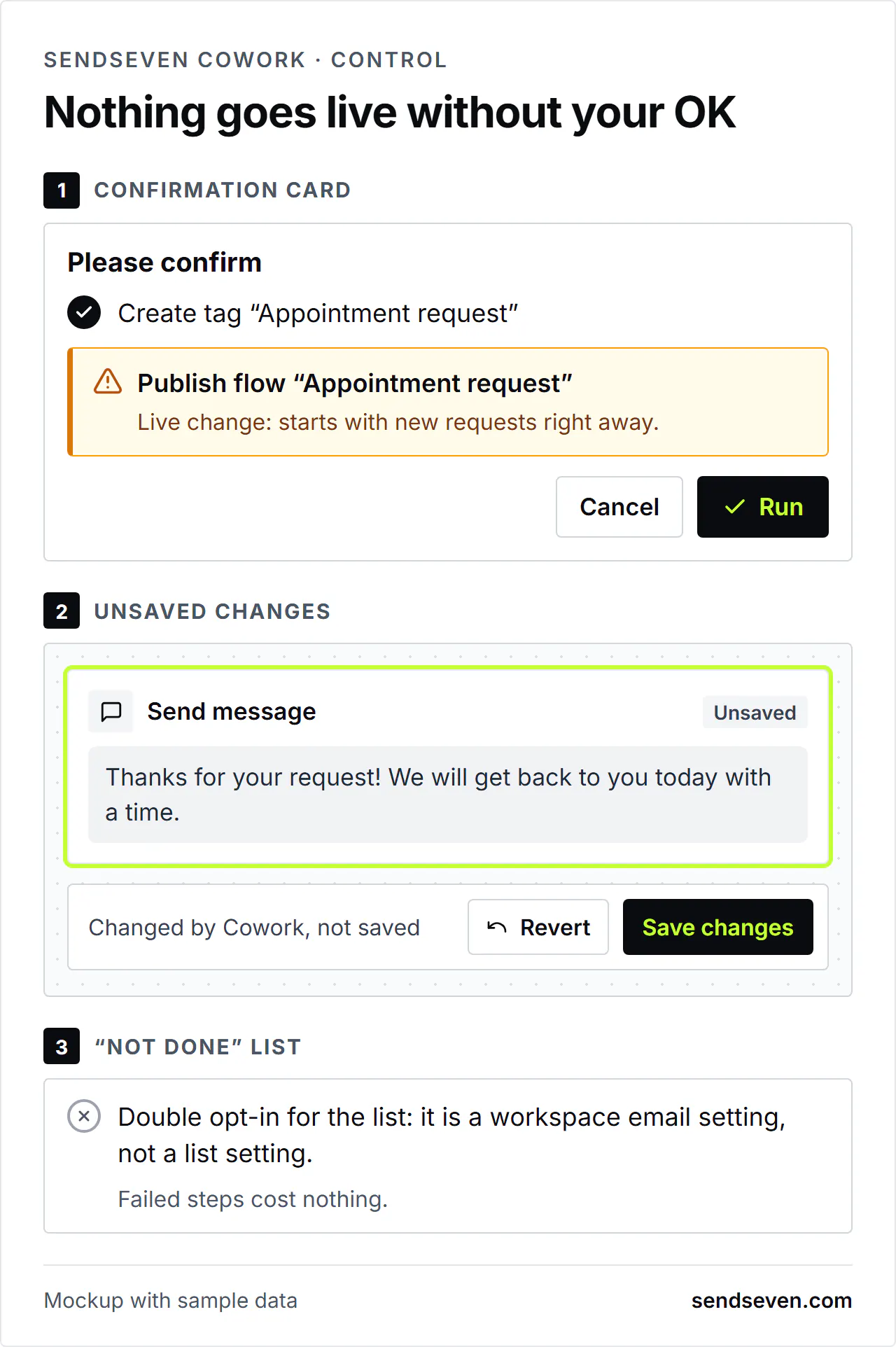
Cowork always acts with the permissions of your role and within your package. A team member without admin rights does not get them through Cowork either. And if something is not allowed, Cowork says so plainly instead of trying.
What does Cowork cost in each package?
SendSeven Cowork is included in every package, including Basic (from €49 a month). Cowork uses AI credits (1 credit = €0.01) and shows the cost before anything runs.
AI agents, the Flow Builder and the AI builder for WhatsApp Flows come with the Professional package (€79 a month). Prices exclude VAT; details on the AI credits page.
| Package | Cowork scope | Advanced level |
|---|---|---|
| Basic | Answers, navigation, simple creation (such as tags, contacts, template drafts) | Not available |
| Professional, Scale, Enterprise | Full scope: flows, WhatsApp Flows, campaign drafts, emails and more | Available |
| API Only | Help with the API, with code examples | Not available |
| Trial (14 days) | As Professional, using the trial's AI credit budget | Available |
A question costs about 2 credits at Fast and about 7 to 10 at Advanced. A WhatsApp Flow costs about 24 to 31 credits per successful build or refinement. Failed or cancelled runs cost nothing, and the plan card always shows the range first.
Can Cowork send messages to customers?
Yes. Since 15 October 2026, Cowork sends messages and WhatsApp templates, publishes flows and edits live automations, but always only after you click on the confirmation card. Cowork never sends or schedules a campaign. Campaigns stay drafts that you send yourself.
A typical case: a customer lost their pickup number. You type into Cowork "Send Emma Clarke her pickup number on WhatsApp". Cowork shows the message and the recipient on the confirmation card. Only your click sends it.
What are the limits of Cowork?
Cowork does not build AI agents in the chat, does not submit templates to Meta by itself, does not send campaigns and does not create authentication templates. For AI agents, Cowork opens the agent builder. If you want an agent built in conversation, use Claude or ChatGPT via MCP.
For the knowledge base, a human always decides: SendSeven never applies conflicts between learned answers automatically. Cowork can show you the review queue and resolve a conflict after confirmation, though not on the Basic package.
Finally, Cowork is experimental. A plan can miss the mark. That is why there is a plan card, a confirmation, "Save changes" and "Revert".
Frequently asked questions
Is Cowork an AI agent?
No. Cowork is an AI assistant for your team inside the app. An AI agent talks to your customers, for example on WhatsApp. The two complement each other: Cowork helps you build, the agent helps you answer.
What happens if a step fails?
Cowork stops, shows the error and offers "Retry failed step". Failed runs cost no AI credits. Anything left undone appears in the "Not done" list.
Can I change a plan before it runs?
Yes. Just type your change into the chat, for example "no image" or "new customers only". Cowork updates the plan and shows the new cost.
Can Cowork submit WhatsApp templates to Meta?
Cowork creates templates as drafts. Submitting to Meta is a separate click. Meta's review usually takes minutes, up to 24 hours with a manual review.
Is Cowork available in ChatGPT or Claude?
No, Cowork lives in the SendSeven app. In ChatGPT and Claude, you work through the SendSeven MCP server. The overview of Cowork and MCP explains the difference.
Last checked on 23 November 2026 against SendSeven's product documentation and the AI credits page.
Try Cowork
Cowork is included in every package. 14-day free trial with its own AI credit budget.