Answer WhatsApp Messages Faster: Quick Replies and AI
SendSeven Team, Editorial Team
Replying faster does not mean typing faster. How quick replies triggered by a shortcut, AI response suggestions with /ai, and automatic ticket summaries lower first response time, what the 24-hour window has to do with it, and which plan includes the AI.
TL;DR
Answering faster on WhatsApp is not about typing faster. Three tools do the work instead: quick replies for the sentences you type daily, an AI response suggestion you call up with /ai, and an automatic summary the moment a ticket closes. Nothing goes out without a click.
All three sit in the same message field your team already uses, and they work across email, live chat, and Telegram as well as WhatsApp. The shared inbox is included from Basic, the AI features from Professional; see SendSeven’s pricing. Worth knowing: since 1 October 2026, your reply inside the 24-hour window costs money too, once you pass the first 1,000 service messages per number and month.
Why a fast WhatsApp reply matters more than a fast email reply
A WhatsApp message lands in a different place than an email. It sits in the same list as a message from a customer’s sister or the plans for Saturday’s five-a-side game. The sender can see, from the tick marks, that the message arrived and was read. Waiting becomes visible, counted in minutes, not business days.
There is also a reason that has nothing to do with feelings and everything to do with Meta’s rules: once a customer messages you, you have 24 hours to reply freely. After that, the window closes, and a quick follow-up turns into a case that needs an approved template instead. Speed on WhatsApp is not just good service, then, it is also the easier path.
The metric behind this is first response time: the time between a customer’s question and your team’s first reaction. It can be measured, by channel and by period, and that is exactly why it can be improved. This article walks through the three moves that do the most for it, without asking anyone to type faster.
How long do you have to reply freely on WhatsApp?
24 hours, counted from the customer’s last message. Inside that window you can write freely: text, images, voice notes, documents. Every new message from the customer resets the clock. This 24-hour window is the single most important rule in WhatsApp business messaging, and most mix-ups happen because teams do not know it exists.
Once the window closes, the only way through is a message template: a text Meta has reviewed and approved in advance. That works reliably, but it is slower, feels less personal, and costs money, at a rate Meta sets by template category and country.
What is free, and what changed on 1 October 2026. Incoming messages stay free permanently. Your freely typed reply inside the open window was also free until 30 September 2026. Since 1 October 2026, Meta charges for these replies, and for utility messages sent inside the window, at the utility rate for each market: 0.0182 € per message in the UK, 0.0028 € in the US and Canada. The first 1,000 service messages per phone number per month stay free. Current pricing always lives on Meta’s platform pricing page.
In practice, that means two things: replying inside the window is always cheaper than letting it lapse and sending a template afterward, and since 1 October 2026, every unnecessary message is a line on the bill. A reply that fully answers the question the first time is not just better service, it is also cheaper than three messages sent back to back.
Quick replies: write the same sentence once
A large share of incoming questions repeat themselves: a letting agency hears the same handful about viewings, deposits, and move-in dates, a repair shop the same handful about turnaround time, cost, and whether a booking is needed. Quick replies, also called saved replies, are ready-made text blocks for exactly these cases. You write the sentence once, give it a shortcut, and from then on it sits in the message field at a keystroke.
There are two ways to use one. If you know the shortcut, you type it directly, say /greeting, and the reply appears. If you do not know it, you type the slash / and get the list of saved replies to browse. New team members need no training on shortcuts, just a key.
Not to be confused with a WhatsApp message template. A quick reply is an internal text block that belongs to your team: no approval needed, editable any time, but usable only inside the 24-hour window because it counts as a freely typed message. A message template is the opposite: reviewed by Meta, but deliverable outside it too. Confusing the two costs time.
The message field holds three more commands, all starting with the same slash:
| Command | What it does | Example |
|---|---|---|
/ | Shows the saved replies to browse | Type the slash, then filter |
/shortcut | Inserts a saved reply directly by its shortcut | /greeting |
/ai | Generates an AI response suggestion | /ai and Enter |
/suggest | Alias for /ai, same effect | /suggest and Enter |
/kb | Searches the knowledge base | /kb reset password |
/note | Adds an internal note | /note Customer prefers email |
@ | Hands the conversation to a colleague mid-thread | @ and pick a name |
Five quick replies are enough to start, and they are almost always the same: a greeting, opening hours, pricing information, a scheduling suggestion, and a request for an order or reference number. Anyone who needs more finds out within a week.
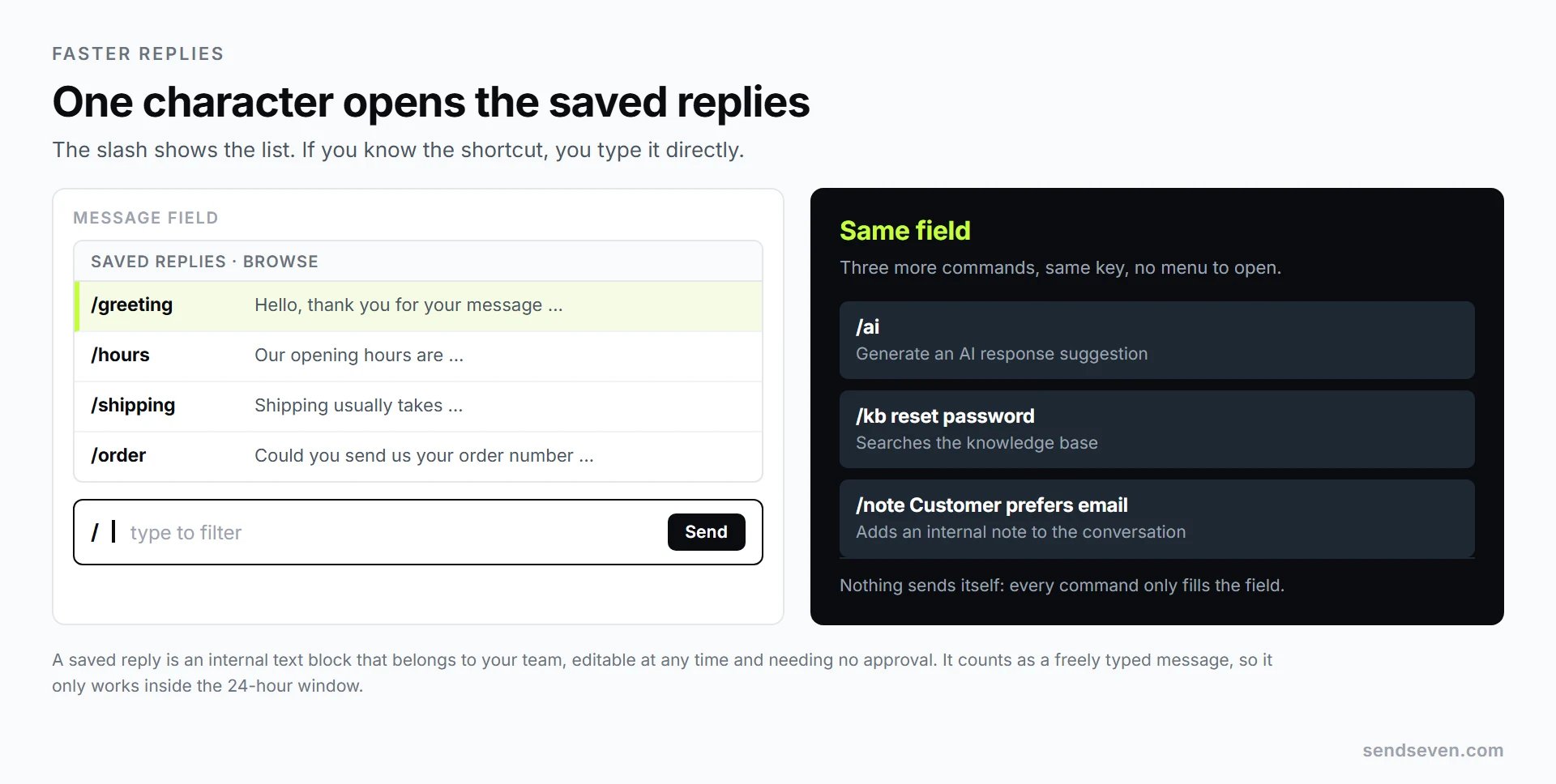
One character opens the list. Illustration: SendSeven.
AI response suggestions: a draft at a keystroke
Quick replies help as long as the question comes back word for word. The moment a customer phrases the same thing differently, or asks two things at once, no saved block fits. That is where the AI response suggestion comes in: you type /ai and press Enter, and the platform builds a draft from the conversation and your knowledge base.
The suggestion appears directly in the conversation, with source references and a confidence score that shows how sure the AI is: green from 70 percent, yellow between 40 and 69 percent, red below 40 percent. The color is a work instruction. Green means read it and send it, yellow means check it, and red means write it yourself, because the knowledge base has nothing that fits.
From there you have three options: Accept puts the text into the reply field, Edit lets you change it before sending, and Reject closes the suggestion so you write your own. Worth stressing: nothing is ever sent automatically. The suggestion is a draft, and the click to send stays with a person.
When you do not need a whole draft, just a piece of information, /kb does the job. Typing /kb reset password searches your knowledge base and returns answers from your own documentation, with links to the matching articles and a match-confidence note. Selecting a result adds it to the message.
How much this helps has been studied. A paper by Brynjolfsson, Li, and Raymond for the National Bureau of Economic Research followed more than 5,000 support agents who were given an AI assistant with response suggestions. They resolved 14 percent more requests per hour on average, and the effect was largest for new agents, almost disappearing for veterans (source: NBER Working Paper 31161, 2023). That is where a tool like this gets interesting for a small business: it brings the Saturday temp up to a level that would otherwise take years to reach.
What happens to the data. The AI features are opt-in: off by default, turned on deliberately in your account settings. The platform is hosted in the EU, and with AI switched on the AI runs in the EU too. The AI provider contractually guarantees that your conversations, messages, and documents are never used to train models. Every account has its own, separate AI resources, and billing data or passwords are never passed to it. Details are in our privacy policy.
The quality of the suggestions comes down to one thing: what is in the knowledge base. A business that has answered its twenty most common questions gets good drafts. One that uploads a single PDF gets yellow and red scores instead. If you cover several topics, split the content into sub-knowledge bases so a sales suggestion does not quote your returns policy. Setting up a knowledge base is covered in the knowledge base guide; the day-to-day flow is shown in the AI response suggestions use case.
Ticket summaries: the handover without the retelling
The second time sink is not in the typing, it is in the reading. A conversation runs over three days, changes hands partway through, and whoever picks it up scrolls through forty messages to work out what it is about. That is what the automatic summary is for.
You turn it on once, in your account’s AI settings, by switching on automatic summaries. After that, the platform writes a summary into the ticket details the moment a ticket closes, covering four things: the customer’s original problem, the key points discussed, the solution or outcome, and any open action items or follow-ups.
The payoff shows up at the next contact. If the same customer gets in touch again two weeks later, a colleague reads three short paragraphs instead of forty messages. It also applies mid-case, when a technical colleague joins in: they start with context, not a question. The automated summaries use case shows how this plays out in practice.
There is a second effect that shows up over time. A resolved ticket can be marked as training material. The AI pulls question-and-answer pairs from it and adds them to the knowledge base. The more real cases sit in there, the better the suggestions get for similar cases. The work you do today makes next quarter’s work lighter, and nobody has to write a manual for it.
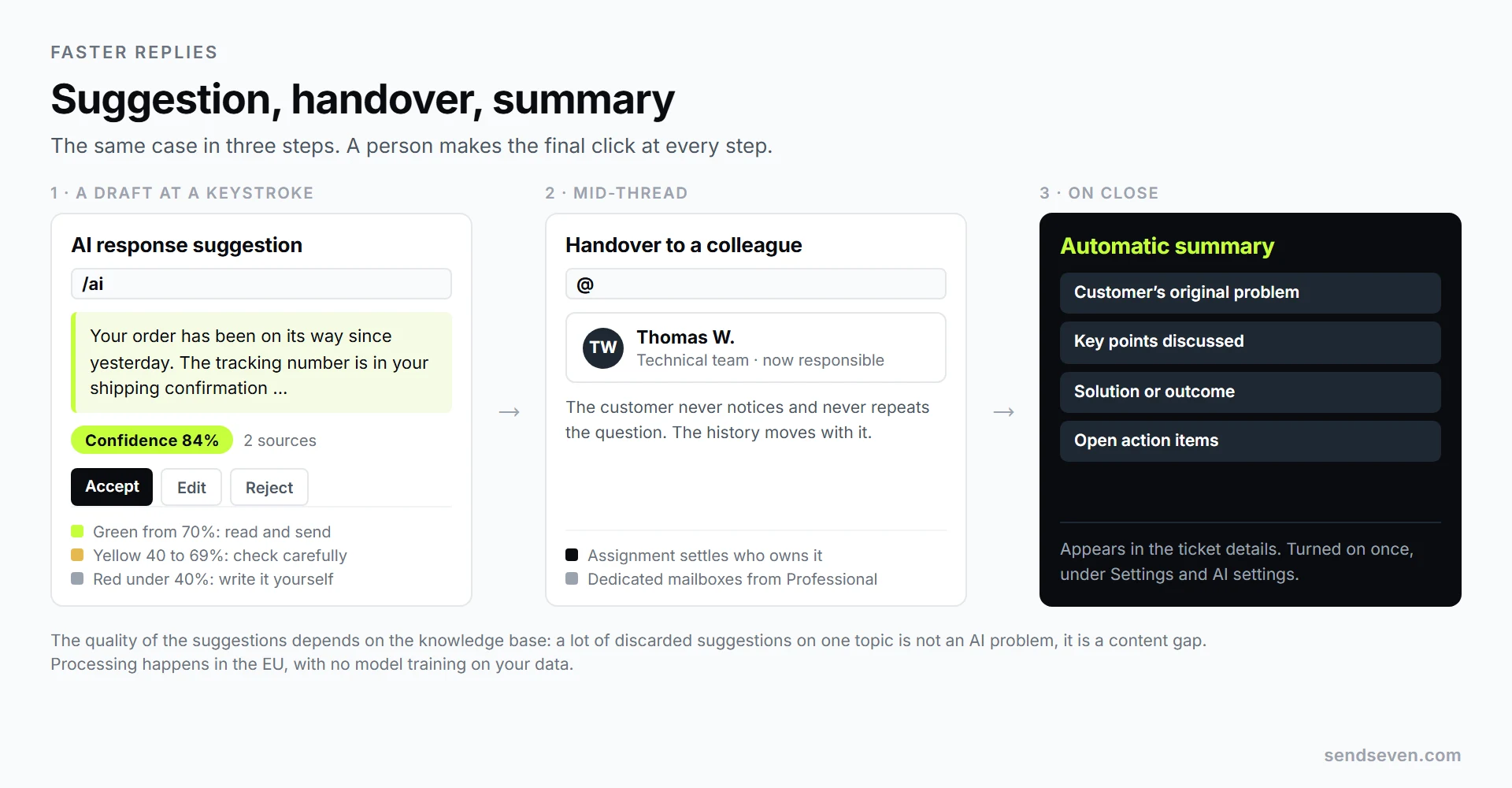
Suggestion, handover, summary: the same case in three steps. Illustration: SendSeven.
Quick reply, AI suggestion, or bot?
The three tools solve different problems, and the most common mistake is starting with the most elaborate. The rule of thumb is short: if the question comes back word for word, use a quick reply; if it is the same thing worded differently, use the AI suggestion; if something must happen at 11 p.m. with nobody there, you need a bot.
| Quick reply | AI response suggestion | Bot | |
|---|---|---|---|
| Fits when | the same question, every time | the same thing worded differently | outside business hours |
| Who sends it | a team member, one keystroke | a team member, after checking it | the platform, no team member involved |
| Effort to start | five minutes per saved reply | filling the knowledge base | defining the flow and handover rule |
| Improves through | manual fine-tuning | more content and resolved tickets | reviewing where customers drop off |
| Included from | Basic | Professional | Professional |
| Limit | only helps with an exact repeat | needs up-to-date content | runs on chat channels, not SMS or browser push |
The recommended order follows from this: start with quick replies, they work immediately and cost nothing beyond five minutes of thinking. Then build out the knowledge base: it carries the AI suggestion. Only then does a bot make sense: it forces a decision about what it answers alone and when it hands off to a person. What a bot is and where its limits sit is covered in What is an AI chatbot?; the stages of customer service automation are in the glossary.
Who replies: assignment, mailboxes, and handover
No tool speeds anyone up if it is unclear who owns the conversation. On a shop’s shared phone, either everyone checks the chat or nobody does, and both are expensive. In the shared inbox, every conversation is attached to a person: assigned, and responsibility is settled.
Mid-thread, you hand a conversation to a colleague with @, without the customer noticing or having to repeat the question. Combined with the summary from the previous section, that becomes a clean handover instead of a retelling in the hallway.
As the team grows, dedicated mailboxes matter: sales sees sales, the repair team sees the repair team, and nobody wades through someone else’s cases. Dedicated mailboxes are included from Professional at no extra cost. Unlimited team members and all eight channels, though, come with every plan, even Basic. The full workflow for teams is in WhatsApp Business with multiple users, and setup is covered in the shared inbox guide.
What to automate instead of typing faster
Some replies should not come from a person at all. The first is the reaction to a message that lands at 10 p.m. A welcome message confirming the message arrived and saying when someone will reply costs the customer no patience and you no time. An out-of-hours message works the same way. Both are part of the automations available from Professional.
The second category is information that never changes and needs nobody sitting in the chat: opening hours, directions, a price list, order status. A bot can answer these around the clock and step aside once things get specific to that customer. What a bot can and cannot do, and where the handover belongs, is covered on the AI bots page.
And then measure it. Without a number, “we reply faster now” stays a feeling. Reporting shows average first response time and resolution time across all channels, plus response time by channel, so you can see where things are stuck. AI has its own view: how many suggestions per team member were accepted, edited, or discarded, and how response time differs with AI and without it. A lot of discarded suggestions on one topic is not an AI problem, it is a gap in the knowledge base.
Which plan includes AI, and what does a reply cost?
The shared inbox, along with quick replies, assignment, and handover, is included from Basic: €49 per month, with 2,500 sent messages included, then roughly €0.02 each after that. Incoming messages never count against this allowance.
The AI features, meaning response suggestions, /kb search, and the automatic summary, are included from Professional: €79 per month, also with 2,500 messages included and €0.02 after that. There is no separate AI add-on to buy. An AI request costs the same per message and draws from the same allowance.
Meta’s messaging fees run alongside this. With SendSeven, Meta bills its fees directly to you at list price. The platform charges a fixed price per message, not a percentage on top of Meta’s price list. For the full breakdown, see Setting up a WhatsApp Business account: requirements and costs; all plans are on the pricing page.
Set up in 30 minutes
Order matters more here than completeness. Anyone who does the first three steps and stops has still come out ahead. Steps one through four work from Basic; steps five through seven need Professional, where the knowledge base and AI features live.
- Write down your five most common questions. Do not guess, check the last two weeks of chat history instead. Ten minutes.
- Set up five quick replies and give them short, obvious shortcuts that a new hire could guess. Step-by-step setup is in the quick replies guide.
- Turn on a welcome message that says when someone will reply. One honest sentence is enough.
- Clarify who is responsible: who covers WhatsApp in the morning, who covers the afternoon? Incoming conversations should be assigned, not watched by everyone at once.
- Fill the knowledge base with your twenty most common questions. This is the step that makes AI suggestions good instead of mediocre, and the only one that takes longer.
- Turn on the AI features in your settings and spend a day working only with
/ai, to get a feel for the confidence score. - Turn on automatic summaries in your AI settings, and after two weeks check your reporting to see whether first response time has dropped.
Frequently asked questions (FAQ)
What is the difference between a quick reply and a WhatsApp message template?
A quick reply is an internal text block that belongs to your team. It needs no approval, can be edited any time, and counts as a freely typed message, so it only works inside the 24-hour window. A message template must be approved by Meta in advance, but works after the window closes too.
Does the AI send replies to customers on its own?
No. A suggestion appears in the conversation and only reaches the reply field once you accept it; sending is still a click made by a team member. If you want something to happen with no team member involved, you need a bot, not a response suggestion, deliberately set up for that.
Where are the AI requests processed, and does anyone train models on our chats?
The platform is hosted in the EU, and with AI switched on the AI runs in the EU too. The AI provider contractually guarantees that your conversations, messages, and documents are never used to train models. The AI features are off by default and switched on deliberately in your account settings. Every account has its own, separate AI resources. Billing data and passwords are never passed to it.
Which plan includes the AI features?
From Professional, so from €79 per month. Response suggestions, /kb search, and the automatic ticket summary are included there, with no extra add-on. The shared inbox with quick replies, assignment, and handover is included from Basic, at €49 per month. Unlimited team members and all eight channels come with every plan.
What happens once the 24 hours run out?
WhatsApp no longer allows a freely typed message, so the only way to reach the customer is an approved message template. It is reliable, but it comes at a cost Meta sets by template category and recipient country. If the customer replies to it, the window opens again for another 24 hours.
Did anything change about the cost of my replies on 1 October 2026?
Yes. Until 30 September 2026, your freely typed reply inside the open window was free. Since 1 October 2026, Meta charges for these replies, and for utility messages sent inside the window, at the utility rate for each market: 0.0182 € per message in the UK, 0.0028 € in the US and Canada, with the first 1,000 service messages per phone number per month free. Incoming messages stay free permanently.
Conclusion
Replying fast on WhatsApp is not about typing speed, it is about three settings. Quick replies handle the repetition, the AI suggestion handles the wording, and the summary handles the re-reading. All three sit in the same message field, and all three leave the decision with a person.
Start today with five quick replies and a welcome message, then fill in the knowledge base, and only then turn on the AI. Which plan fits is on the pricing page. And keep in mind that since 1 October 2026, every message counts, including your own.