Qualify leads with a WhatsApp Flow: all the details at once
SendSeven Team, Editorial Team
Instead of several rounds of follow-up questions, one form in the chat: how a lead capture flow asks for every detail of a quote at once, saves the answers as a field or tag on the contact and passes the complete inquiry to your team or your CRM.
TL;DR
To qualify leads on WhatsApp, send a WhatsApp Flow: a form inside the chat that asks for everything your team needs for a quote at once, on one to three screens, with choices instead of typed answers, a prefilled name and, if you like, a photo. That replaces the rounds of follow-up questions that incomplete inquiries usually trigger. The answers are saved to the contact as a field or tag, and on Professional and up an automation passes the complete inquiry to the right person. This post shows which questions belong in the flow, how it reaches your prospect and what happens after they submit it.
Why does a form in the chat bring in more complete inquiries?
A form in the chat brings in more complete inquiries because it removes the hurdles between interest and inquiry: no switch to a browser, no retyping of details you already know and no rounds of follow-up questions that drag across a whole day. Your prospect stays in WhatsApp, taps their answers and sends everything in one go.
Why do inquiries in the chat so often arrive incomplete?
Because people write what matters to them, not what your team needs. “What would solar panels cost?” is an honest question, but without the roof type, the electricity usage and the location, nobody can answer it with a quote. So your team asks, the prospect replies in the evening and the next follow-up question lands the following morning. Every round gives the prospect time to ask another company as well.
A WhatsApp Flow turns that around. Instead of collecting the details one by one, it asks all the questions at the same time, as choices, date fields or a photo upload. Four things help more inquiries arrive complete:
- Tapping instead of typing: A choice is quicker to answer than an open question, and the answer is unambiguous.
- Required fields: Whatever your team can't work without can't be skipped.
- Prefilled details: Known details such as the name are already on the first screen, and your prospect only checks them.
- No switching apps: Someone who asks for a quote from the couch in the evening fills out the form right there, without waiting for a web page to load.
For the technical basics, see WhatsApp Flows explained.
In context: the Learnwise example
Meta has published a success story about Learnwise, an education provider in Kerala, India, that advises working professionals on degree programs. Instead of letting prospects from Click-to-WhatsApp ads type their own questions, Learnwise used a WhatsApp Flow to ask about their previous education, the program they wanted and their motivation, and then passed the inquiries on to its counseling team in order of priority. In a test of just under two weeks in fall 2025, the company reports four times as many qualified leads, 60% less time spent on qualification and a 31% lower cost per qualified lead. Meta notes that the results are self-reported and that other businesses should expect different results. That isn't a promise for your business, but it shows where the gains come from: how the questions are structured.
A flow doesn't replace a conversation, though. Someone who wants advice, or has a question that fits none of your choices, needs your team or an AI bot. Our comparison of WhatsApp Flows, buttons and chatbots shows when each answer format fits.
Which details does your team really need for a quote?
Ask only for what your team needs to write a quote or schedule a callback. A simple test: which questions does your team ask first on almost every inquiry today? Those belong in the flow. Leave everything that depends on the individual case for the conversation.
| Business | Ask in the flow | Clarify later in the conversation |
|---|---|---|
| Solar installer | Project, type of home, roof type, monthly electricity usage, ZIP code, photo of the roof, callback time | Incentives, financing, exact system size |
| Painting contractor | Rooms, walls or ceilings, preferred start date, ZIP code, photos of the rooms | Paint colors, condition of the surfaces, special requests |
| Gym or fitness studio | Goal, preferred time for a trial class, experience | Membership plan, contract length |
| B2B software | Industry, team size, use case, preferred date for a demo | Integrations, budget, decision process |
Here's how that looks for Bayshore Solar, a fictional solar installer in Tampa, Florida. At 6:02 p.m., Daniel Ortiz messages Bayshore Solar on WhatsApp to ask what solar panels for his house would cost. Bayshore Solar replies with a quote request flow. On three screens, Daniel picks his project, describes his home with a few taps, uploads a photo of the roof and picks a time for a callback.
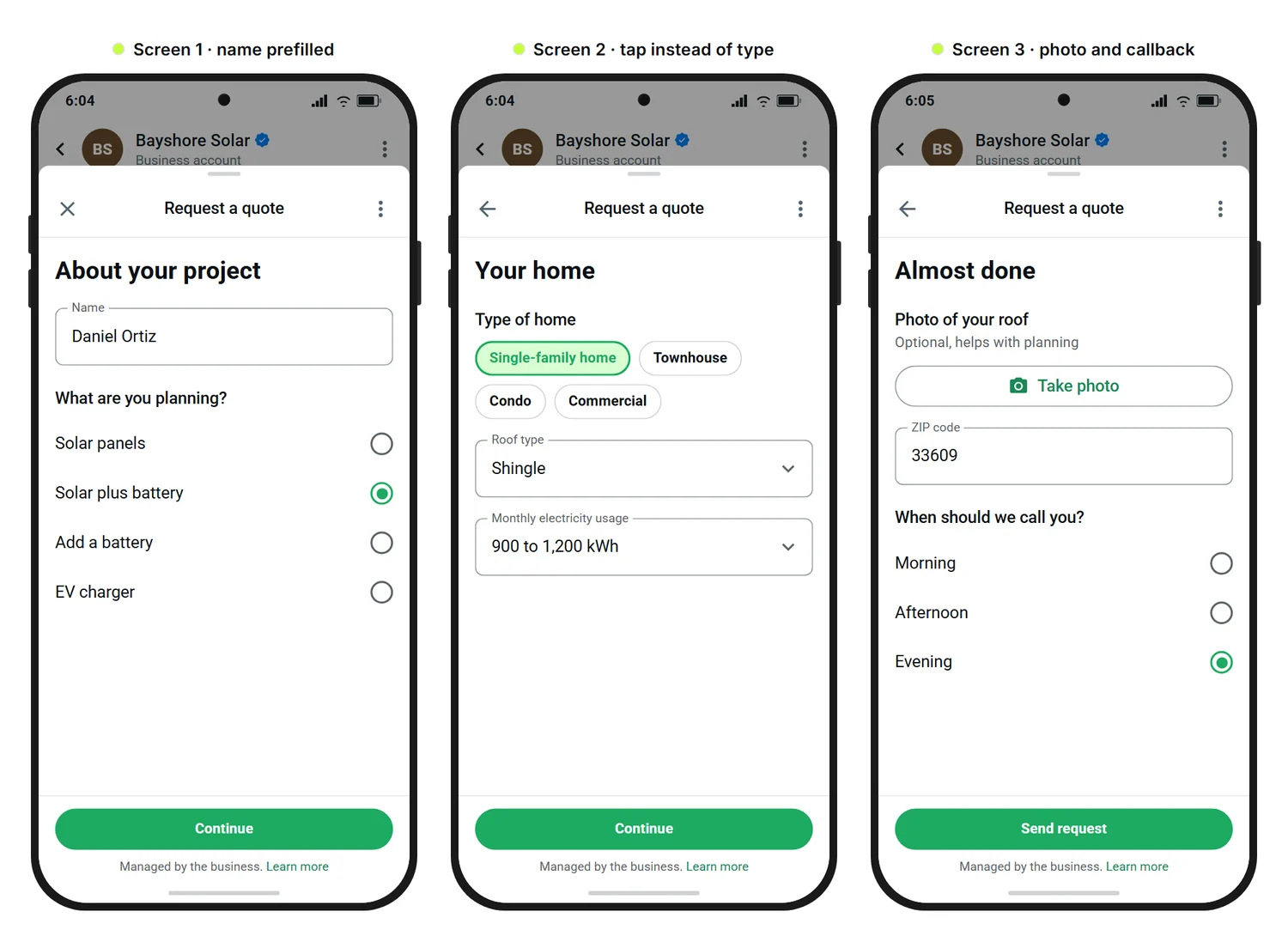
A few rules help with lead capture flows:
- Choices before typed answers: Ask for electricity usage or team size in ranges, such as about 900 to 1,200 kWh a month, and for the roof type as a choice. An open text field at the end catches everything that doesn't fit.
- Required only where needed: Make photos and extra details optional. Someone without a photo at hand should still be able to submit.
- Prefill what you know: When you send the flow, it can fill the first screen with details from the contact, such as a name or an email address, so your prospect only checks and confirms. Put those fields at the start.
- One topic per screen: First the name and project, then the home, finally the photo, ZIP code and callback time. That way your prospect always knows where they stand.
A template gets you there faster. Among others, there are ready-made flows for lead capture and qualification, quote and estimate requests, callback requests and demo requests, and you adapt them to your questions in the WhatsApp Flow editor. On Professional and up, you describe your case in your own words and the AI builder creates a static flow from it. It uses AI Credits, but only for successful runs.
How does a WhatsApp Flow pre-sort your leads?
A lead capture flow pre-sorts your leads because every answer lands where your team needs it: in a contact field, in a custom field or as a tag on the contact. Your team then sees at a glance who's planning solar plus battery and who only wants an EV charger, without reading the chat.
- Save the answer: For each input, you decide where the answer goes: into a contact field, into a custom field such as “Project,” as a tag on the contact, or only into the flow's responses. If an answer doesn't fit the field type or the options of the contact field, it doesn't overwrite the contact's details.
- Tag contact on completion: Everyone who submits the flow automatically gets a tag, such as “Solar inquiry.” You find all new inquiries in contact management with a filter.
- Fields only when needed: With If/Else, a field appears only under a condition, for example a question about the existing system only for people who chose “Add a battery.” Each condition checks exactly one choice, so add a separate condition for every answer that should show the field.
- Photo instead of description: A photo of the roof, the electrical panel or the damage often tells your team more than three sentences. Meta allows one photo or document picker per screen. Uploaded files show up as an attachment in the chat and on the contact.
The saved answers add up to a profile that helps your team set priorities: an inquiry with a battery, a single-family home and a photo is further along than one with no details about the home. Because prospects share these details with you on purpose, they count as zero-party data.
How does the WhatsApp Flow get to your prospect?
The lead capture flow usually reaches your prospect in one of three ways: as a reply from the inbox, through an automation in the Flow Builder, or through a WhatsApp message template with a Flow button. Which one fits depends on who starts the conversation.
- From the inbox: A prospect writes, and your team replies with the flow. This works on Basic and up, as long as the 24-hour window is open, meaning the prospect has written to you in the last 24 hours.
- From an automation: On Professional and up, an automation in the Flow Builder sends the flow without your team lifting a finger. The On keyword match trigger reacts to words such as “quote,” “price” or “solar,” and the Came from an ad trigger reacts to everyone who writes to you through a Click-to-WhatsApp ad. The Send WhatsApp Flow step then sends the form. Which keywords work well is covered in WhatsApp trigger words.
- From a template with a Flow button: Someone who hasn't written to you in more than 24 hours, such as a contact from a home show, receives a Meta-approved message template with a Flow button, provided they have opted in. The link behind the button stays valid for 72 hours.
A lead capture flow like this is a static flow, available on Basic and up and also on numbers in Coexistence mode. On Basic, you send the flow by hand, from the inbox or with a template. That is often enough to start: your team answers every price question with the same flow instead of asking follow-up questions one by one.
Prospects can start the chat from almost anywhere: a QR code on a yard sign at a job site that opens WhatsApp with the text “Solar quote,” a WhatsApp button on your website or an ad.
What happens when your prospect submits the flow?
As soon as your prospect submits the flow, the answers appear in the chat in your inbox, and the matching fields and tags are saved on the contact. On Professional and up, the WhatsApp Flow completed trigger starts an automation that passes the complete inquiry on.
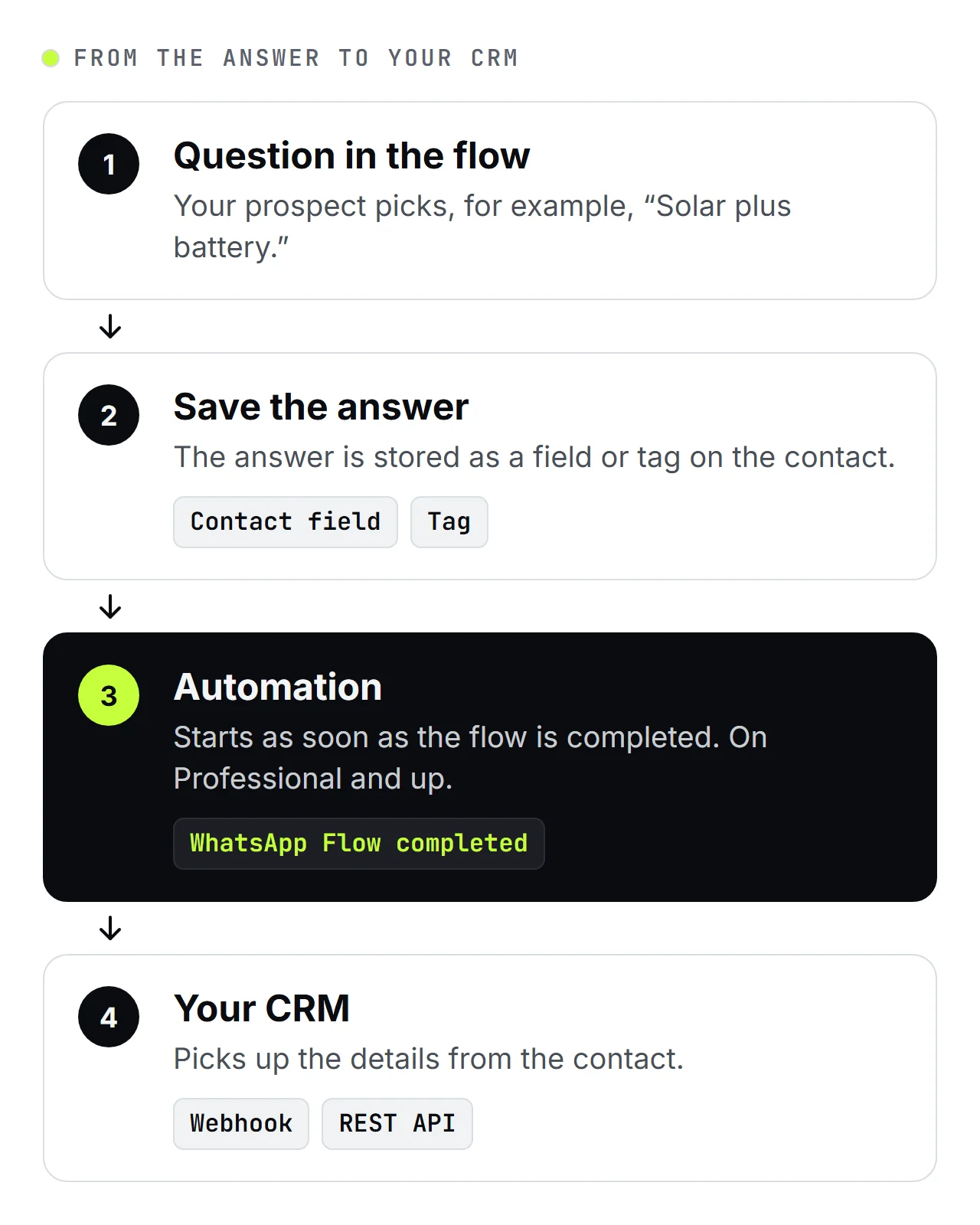
Such an automation can, for example:
- set tags and update contact fields, such as “Status: new inquiry,”
- add the contact to a list if they agreed to your newsletter in the flow,
- branch by answer, for example sending battery inquiries to a different team than EV charger inquiries,
- assign the chat round-robin to the next team member and send your team an email notification,
- confirm to your prospect that the inquiry has arrived and when they will hear from you.
Asking for newsletter consent in the flow comes with its own rules. Our post on WhatsApp Flows and GDPR explains what to look out for.
If an automation sent the flow, its Send WhatsApp Flow step waits for the answers. If no answer arrives within the wait time you set, the step's timeout outcome runs, and the automation can send one friendly follow-up or hand the chat to your team.
If your sales team works in a CRM, you can hand the answers over with a webhook or the REST API. The details sit on the contact, and you can pass them on from there. The webhook setup guide shows how to set it up. Each flow also has its own analytics with a response table that you can export as a CSV file.
The short version: A lead capture flow asks for the details your team needs for every quote at once, saves them sorted on the contact and passes the complete inquiry on.
For all the features at a glance, see the WhatsApp Flows and Flow Builder pages. The guide to WhatsApp Flows walks you through building a flow step by step. How teams organize contacts and fields is shown in the contact management use case, and how a flow works together with a bot in the chatbot automation use case.
Further reading:
- WhatsApp Flows explained: forms inside the chat for small businesses
- WhatsApp Flow, buttons or chatbot: which fits which question?
- Designing Click-to-WhatsApp Ads 2026: Creative, Pre-Filled Message & Flow Trigger
- WhatsApp Flows and GDPR: consent and data protection
- Live Chat in B2B 2026: capture leads instead of losing visitors
Frequently asked questions
How many questions should a lead capture flow have?
As few as possible. Every question should influence a decision in your team, such as who gets the inquiry, which quote fits or whether an on-site visit is needed. As a rule of thumb, one to three screens with two to four inputs each are enough. Save anything that's only nice to know for the first conversation.
Who gets the inquiry once the flow is submitted?
Without an automation, whoever handles the chat in your inbox sees the answers. On Professional and up, an automation with the WhatsApp Flow completed trigger can assign the chat round-robin within a fixed group of team members or within a custom inbox. If you save an answer such as the project as a custom field or tag, custom inboxes can sort the inquiries by it automatically, also on Professional and up.
When should a person answer instead of the flow?
Let your team answer when the inquiry doesn't fit your choices, when someone explicitly wants advice, or when a lot of money is at stake and trust matters more than speed. A flow collects details, it doesn't advise. So answer a concrete question briefly first and offer the flow afterwards, for example: “The price depends on your roof. Tap Request a quote below and we'll get back to you.”
Does a lead capture flow work with Click-to-WhatsApp ads?
Yes. On Professional and up, the Came from an ad trigger starts an automation as soon as someone writes to you through a Click-to-WhatsApp ad. The automation can send the lead capture flow right away instead of leaving your prospect to type out the details. How to build the ad itself is covered in designing Click-to-WhatsApp ads.
What does it cost to collect leads with a WhatsApp Flow?
WhatsApp Flows is in beta. Completed flows are free during the beta. Every flow you send counts as one message from your plan's message allowance, just like any other WhatsApp message, and Meta's fees apply as usual. Once WhatsApp Flows is generally available, an additional charge per completed flow will apply. We'll let you know well in advance.
For the full picture, see the cost section of WhatsApp Flows explained.