Recurring reports with photos: collect them with a WhatsApp Flow
SendSeven Team, Editorial Team
Repair reports, meter readings, returns: how a WhatsApp Flow collects recurring reports with a photo in the same form every time, turns them into a list you can sort and gets the photos to your team or your CRM.
TL;DR
Repair reports, meter readings and complaints usually reach you in the chat as a loose photo with a few words, and your team has to ask which flat, which room and what exactly is wrong. A WhatsApp Flow collects each report in the same form: the same fields every time, with the photo, sent in one go. The details land in the response table, which you can export as a CSV file, and, if you like, in a field or tag on the contact. The photo arrives as an attachment in the chat and in the contact profile.
Which recurring reports suit a WhatsApp Flow with a photo?
A WhatsApp Flow with a photo suits reports where your team needs the same details every time and a picture says more than a description. If every report looks different, a flow isn't worth it.
| Report | The same fields every time | What the photo shows |
|---|---|---|
| Repair report | Property, room, type of problem, urgency | The fault or damage |
| Meter reading | Property, meter type, reading | The meter display |
| Damage report | Reference number, what happened, when | The damage |
| Complaint | Order or job number, type of complaint, what the customer wants | The faulty goods or work |
| Return | Order number, item, reason, exchange or refund | The item and its packaging |
| Delivery or handover photo | Job, location, condition, notes | The delivery or finished work |
Take Pennick Lettings, a fictional letting agency in Sheffield that manages several blocks of flats. Tenants report a dripping tap, mould or a broken light in the communal hallway all year round, and at move-in and move-out they send meter readings. Until now, all of it has arrived as a loose photo with a sentence of text, and the office first has to ask which flat is meant before anyone logs the repair or types the reading into a list.
A lead capture flow, as described in Qualify leads with a WhatsApp Flow, collects the details for a quote once. Recurring reports are the opposite case: the same report comes in again and again, and each one should arrive in the same form.
The templates that come with SendSeven are a good starting point, for example those for returns, quotes or support tickets. You adapt the fields to your report and add a photo upload if you need one. Many industries deal with reports like these: returns and complaints from e-commerce, damage reports from insurance, and meter readings and repairs from property management.
How do you ask for photos and documents so that they're usable?
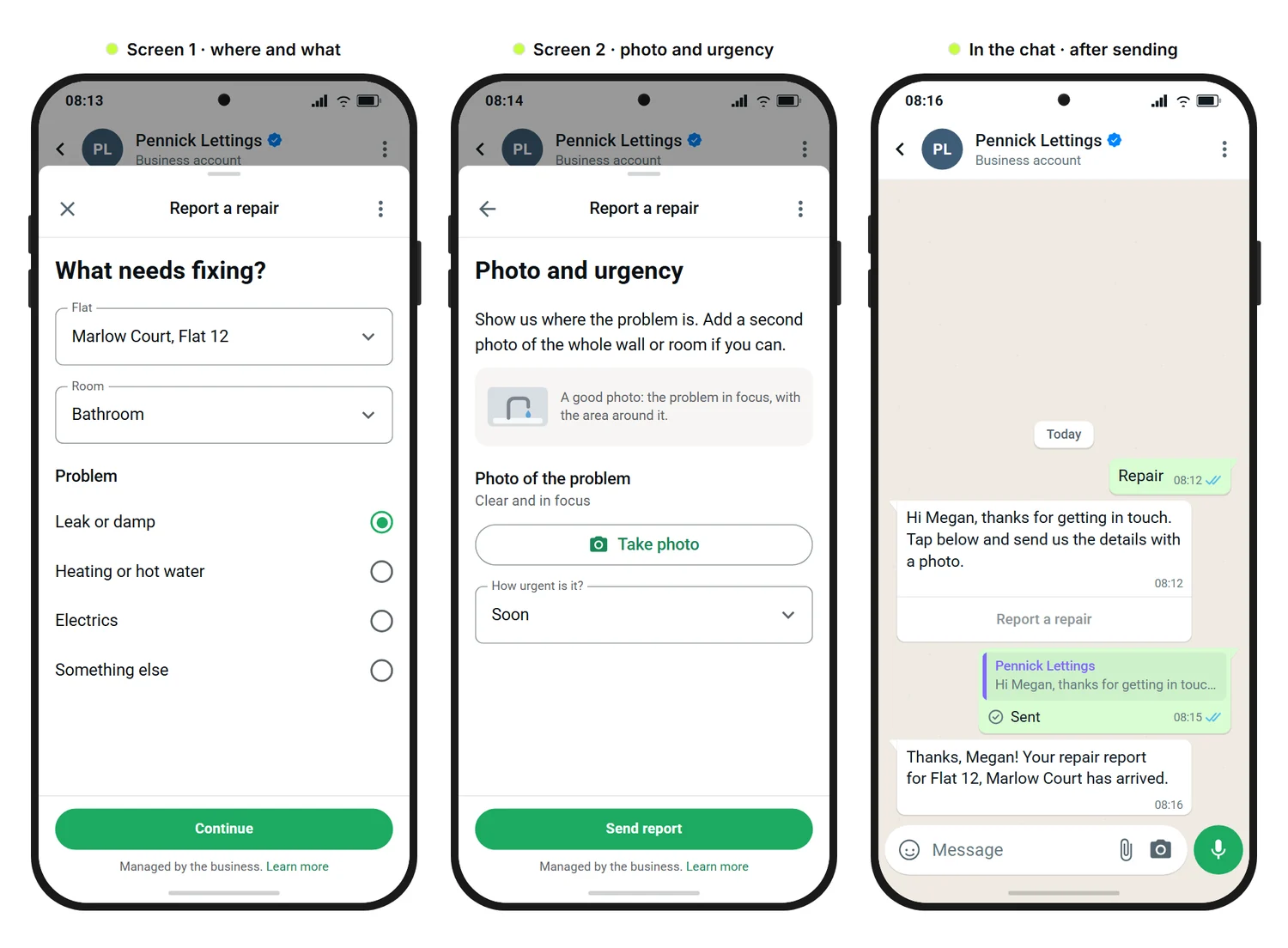
Tell the customer exactly what the photo should show. Three things help, and the repair report that Megan, a Pennick Lettings tenant, fills in below shows all three:
- Instructions on screen: A short sentence above the photo field says what belongs in the picture, such as “Show us where the problem is. Add a second photo of the whole wall or room if you can.” Say what should stay out of the picture too, for example people.
- An example image: With the Image component you show what a good photo looks like. Meta recommends keeping images in a flow small, up to 300 KB each, as JPEG or PNG, and allows at most three images per screen (Meta's documentation).
- One picker per screen: Meta allows one photo or document picker per screen, and a photo picker and a document picker can't be combined on the same screen. One picker can take several files, within the limits below, so a second photo of the same problem doesn't need a second screen. You only need another screen when the two photos need different instructions, for example a close-up of a meter display and a wider shot of the meter cupboard.
Which components do you need for photos and documents?
| Component | What it is for |
|---|---|
| Photo upload | Photos of the fault, the damage or the item. You decide whether the customer takes a new photo with the camera, picks one already saved on their phone, or can do either, and you set a minimum and a maximum number of files. |
| Document upload | Documents such as a delivery note or an invoice, also with a minimum and a maximum number of files. |
| Image | An example image or a sketch that shows what you need. |
| Caption | A short hint, such as “Clear and in focus”. |
How many files can a customer upload, and how large can they be?
Two limits apply side by side. In the editor you set a maximum of between 1 and 30 files for each photo or document picker, plus a minimum if you like, and each file can be up to 25 MB. Separately, Meta limits the response the flow submits at the end to at most 10 files and 100 MB in total (Meta's documentation on file upload). So the editor allows more than a single report can carry. Plan for at most 10 files per report, across all screens together. For a repair report or a meter reading, one to three photos are usually enough.
How do lots of reports become a list you can sort?
If every report has the same fields, lots of reports add up to a list you can sort and filter. There are four places for that:
- Response table and CSV export: Each flow has its own analytics with a response table. You can filter it by status and export it as a CSV file. In a spreadsheet you then sort by block, flat or date.
- Card in the chat: In the chat, a Flow completed card shows the questions and answers of the report. Your team sees what was reported without opening the table.
- Contact field: For each input, Save the answer decides where the answer goes, for example into a custom field such as “Flat”. Your team then sees on the contact which flat the tenant lives in. For the history of all their reports, use the response table and the CSV export rather than the contact field. If an answer doesn't fit the field type, it doesn't overwrite the contact's details.
- Tag on completion: With Tag contact on completion, everyone who submits a report automatically gets a tag such as “Repair report 2026”. In contact management you find everyone who has reported with a filter.
| Received (UTC) | Flat | Room | Problem | Urgency |
|---|---|---|---|---|
| 5 Oct, 07:15 | marlow_12 | bathroom | leak_damp | soon |
| 5 Oct, 09:02 | ashby_04 | kitchen | heating_hot_water | urgent |
| 5 Oct, 11:40 | marlow_07 | hallway | electrics | can_wait |
| 6 Oct, 06:58 | ashby_09 | bedroom | leak_damp | soon |
| 6 Oct, 10:13 | marlow_02 | stairwell | electrics | urgent |
You see the photos for these rows in the chat and on the contact. The table is a plain list with no built-in reporting: you build totals, comparisons or charts from the CSV export in your spreadsheet.
What should you watch for with field names and times?
- Readable option IDs: For choice fields, the table and the card currently show the ID of the option, not its title. So give your options readable IDs such as
leak_dampormarlow_12instead ofoption_1andoption_2, and the list reads without any translation. - Unique field names: Each field name can appear only once in the whole flow, even if two screens never show up together.
- Times in UTC: The analytics show times in UTC, the chat shows local time. In the UK the two only match outside British Summer Time. From the last Sunday in March to the last Sunday in October, the table runs an hour behind UK time. That is why Megan's report from the mockup, sent at 08:15 on 5 October, shows up as 07:15 in the first row.
How does the flow reach a customer for each new report?
With a fresh flow message every time. Once a customer has submitted a report, the button in that message is greyed out, so the next report needs a new one. There are four ways to send it:
- A keyword through a QR code or link: A QR code on the noticeboard in the communal hallway or a link in your move-in email opens WhatsApp with the text “Repair” already filled in. As soon as the customer sends it, an automation starts. Our post on trigger words in QR codes and links shows how to pick a good one.
- An automation in the Flow Builder: On Professional and up, the On keyword match trigger in the Flow Builder reacts to the keyword, and the Send WhatsApp Flow step sends the form. The step waits for the answer and has a separate outcome for when the waiting time runs out.
- A template with a Flow button (approved by Meta): For reminders, for example ahead of a meter-reading date, you need a message template with a Flow button that Meta has approved, because outside the 24-hour window that is the only way to send a flow. Meta requires an opt-in for it. The link behind the button stays valid for 72 hours. To send the reminder to many contacts at once, run it as a campaign, which also needs such a template.
- By hand from the inbox: Your team sends the flow in the chat while the 24-hour window is open. That works on Basic and up.
On Basic, you send by hand, with the template or as a campaign. That is often enough to start with: your team answers every photo in the chat with the same flow instead of asking questions one by one. An AI bot doesn't send a flow: your team or an automation does.
Where do the photos and details end up, and what happens next?
As soon as the customer submits the report, the details appear as a card in the chat, and the assigned fields and tags appear on the contact. Photos and documents arrive as real attachments in the chat, as a preview image or a file, and SendSeven stores them in the contact profile. According to Meta's documentation, WhatsApp keeps uploaded files encrypted and only temporarily, for up to 20 days. What to consider on data protection is covered in WhatsApp Flows and GDPR.
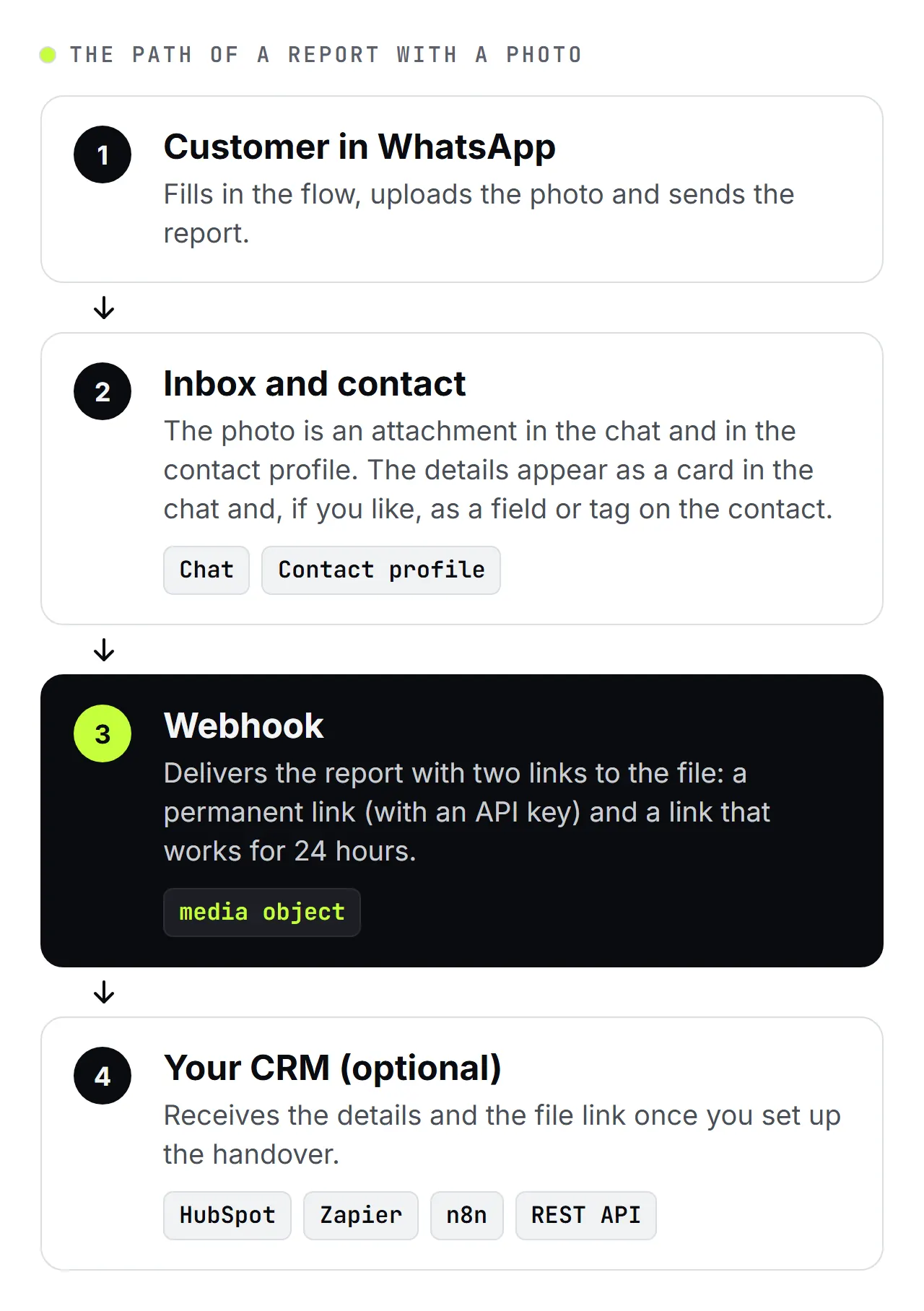
For your IT: through a webhook, your system receives the report with a media object. It contains a permanent download link, for which you need an API key, and a temporary link that works for 24 hours. If you want to keep the file in your own system, download it through one of them. The webhook setup guide shows how to set it up.
If your office works in a CRM, pass the details and the file link on through the HubSpot connection, Zapier, n8n, webhooks or the REST API. A CRM won't pick the file up by itself, so set up the handover and check with a test report that the photo arrives.
What can happen automatically after a report?
On Professional and up, the WhatsApp Flow completed trigger starts an automation. It can, for example:
- confirm to the customer that the report has arrived,
- email your team,
- set a tag and update fields, such as “Status: repair reported”,
- assign the chat to a team member or an inbox.
How teams work through incoming reports as tickets is shown in the ticket management use case.
What should you watch for with sensitive documents?
Ask only for what you really need, as with any form. A photo often shows more than that, and with recurring reports the photos pile up quickly, along with files you would rather not hold.
- No ID documents: Don't ask for photos of a passport or driving licence if a job or customer number is enough. If your business does need ID, for example for Right to Rent checks, use a route that your data protection adviser has approved.
- No health data: Avoid asking for photos of injuries, medical certificates or test results through a flow. Health data is special category data under Art. 9 of the GDPR and the UK GDPR, and it needs its own legal basis. If you still want to collect such details on WhatsApp, clear it with your data protection adviser first.
- Set the frame: Say in the instructions what should stay out of the picture, for example people, number plates or post on the table.
- Mark sensitive fields: Fields you mark as sensitive appear masked in the API, in webhooks and in the response table. In the chat your team still sees the answer, so they can deal with the report. That covers field contents, not photos, so don't ask for images that could show something sensitive in the first place.
- Limit access: Whoever can see the chat sees the attachments. How to narrow that down with inboxes is covered in the frequently asked questions.
This isn't legal advice. Which data you may ask for depends on your business and your customers. Consent, data minimisation, the privacy notice and the data processing agreement are covered in WhatsApp Flows and GDPR, which also explains how health data is treated.
The short version: A flow collects each recurring report with the same fields and a photo, makes it sortable in the response table, stores it on the contact and puts the photo in the chat.
All the features are on the WhatsApp Flows and Flow Builder pages, and the WhatsApp Flows guide walks you through building and publishing a flow. The contact management use case shows how teams organise contacts, fields and tags.
Further reading:
- WhatsApp Flows explained: forms inside the chat for small businesses
- Qualify leads with a WhatsApp Flow: all the details at once
- WhatsApp Flows and GDPR: consent and data protection
- WhatsApp Flow customer survey: collect feedback in the chat
Frequently asked questions
Why not just let customers send photos in the chat?
Because a loose photo doesn't say what it belongs to. In an ordinary chat a photo has no flat, no room and no job number, so your team has to ask or type the details up themselves, and the photos end up scattered through the chat history. A flow sends the details and the photo in one go, with the same fields for every report, and the details can then be sorted, filtered and saved on the contact. For a single, one-off question with a picture, the normal chat is still fine.
How many photos can a customer upload in one flow?
Plan for at most 10 files per report. In the editor you can allow up to 30 files for each photo or document picker, each up to 25 MB, with one picker per screen. Meta, however, caps the response a flow submits at 10 files and 100 MB in total (Meta's documentation), and that cap counts across all screens with a photo upload.
Who in my team can see the uploaded files?
Whoever can see the chat. Photos and documents from a flow sit as attachments in the chat and in the contact profile, so you control who sees them through access to the chats. On Professional and up, custom inboxes do that: an inbox shows the chats with certain tags or custom fields, and you decide which team members can see it. A flow can set both on the contact, for example the tag “Repair”, and an inbox called “Maintenance” then shows every chat with that tag.
How do you remind customers of a regular report?
With a Meta-approved template with a Flow button, sent on the due date to every contact who has opted in. For many recipients at once, that runs as a campaign. The link behind the button stays valid for 72 hours. Anyone who reports later sends the keyword and gets the flow again: from an automation on Professional and up, or from your team on Basic.
What does it cost to collect reports with a WhatsApp Flow?
WhatsApp Flows is in beta. Completed flows are free during the beta. Every flow you send counts as one message from your plan's message allowance, just like any other WhatsApp message, and Meta's fees apply as usual. Once WhatsApp Flows is generally available, an additional charge per completed flow will apply. We'll let you know well in advance.
For the full picture, see the cost section of WhatsApp Flows explained.